
Multi-Factor Authentication (MFA)
Add an extra layer of security by enabling two-factor authentication (2FA).
Prerequisites
Before enabling MFA, make sure you have:
- An active account and access to your password
- A phone with an authenticator app (e.g., Google Authenticator, Authy)
Enable MFA
Step 1: Open Security Settings
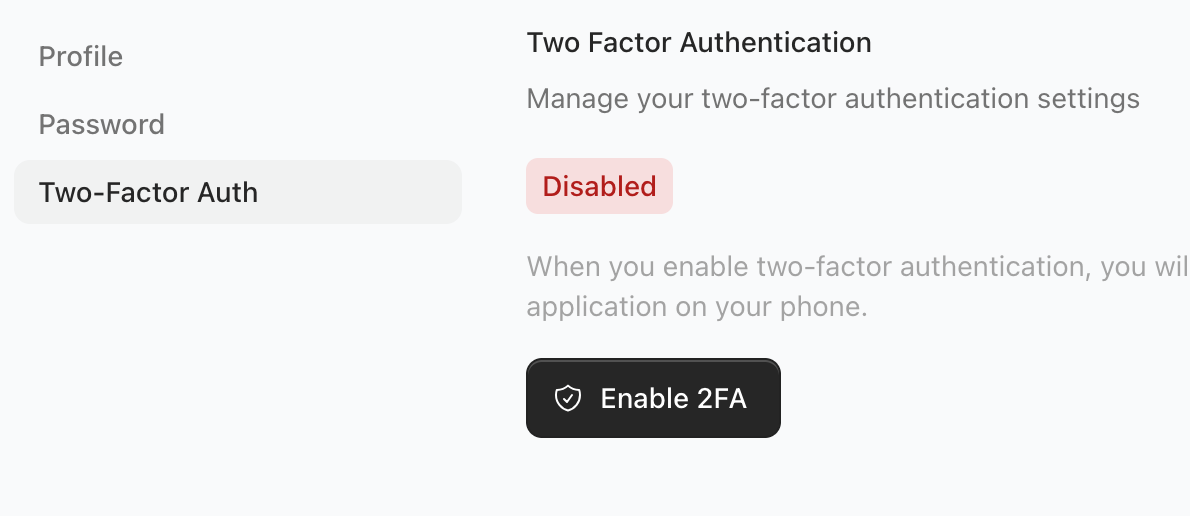
Go to /settings/profile and find Two-Factor Auth.

Step 2: Confirm Your Password
Enter your current password to continue.
Password confirmation is required before changing security settings.
Step 3: Enable 2FA
Click Enable 2FA and follow the on-screen instructions to finish setup.
Store any recovery codes in a safe place so you can regain access if you lose your device.
Common Issues
Code Not Working
- Make sure your device time is set to automatic
- Try generating a new code in your authenticator app
Lost Access to Your Authenticator
Contact support if you no longer have access to your authenticator device.
Next Steps
After MFA is enabled:
- Test a fresh sign-in to confirm it works
- Keep your recovery codes secure