Dashboard Overview
Your dashboard is the central command center for managing your venue, providing instant access to key metrics, reservations, and important actions.
Accessing the Dashboard
After signing in, you're automatically directed to your dashboard:
Path: Dashboard (Home)

Dashboard Layout
Navigation
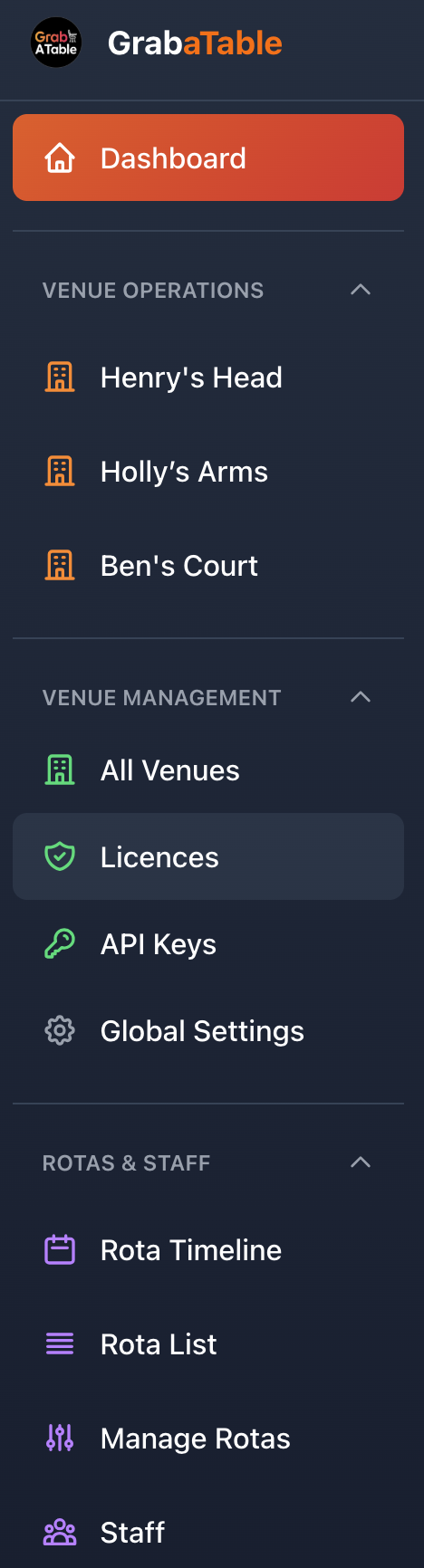
Quick access to:
- Dashboard: Return to home (this page)
- My Venues: List of all your venues
- Payments: Manage licences and billing
- Global Settings: Configure system-wide preferences
- Documentation: Access help resources
- Notifications: View alerts and messages
- Profile: Account settings and preferences
Venue Selector
If you manage multiple venues:
- Dropdown to switch between venues
- Shows current venue name
- Quick-switch functionality
- Learn more about multi-venue features
Dashboard Sections
Your dashboard is organized into several key areas. Explore each section in detail:
📊 Metrics & Performance
View real-time metrics including:
- Today's reservations and capacity
- Weekly performance overview
- Revenue tracking
- Customer satisfaction scores
- Staff scheduling
- Performance trends and insights
🔔 Activity & Alerts
Stay informed with:
- Real-time activity feed
- Smart alerts and notifications
- Calendar view
- Integration status
- Operational warnings
⚙️ Customization
Personalize your experience:
- Custom dashboard layouts
- Widget management
- Saved views
- Mobile optimization
- Keyboard shortcuts
- Theme preferences
📈 Reports & Export
Generate reports and export data:
- Quick one-click reports
- Scheduled reports
- Data export options
- Custom report builder
- Historical archives
🏢 Multi-Venue Management
For managing multiple venues:
- Aggregate view across all venues
- Performance comparison
- Quick venue switching
- Centralized operations
Quick Start Guide
Dashboard at a Glance
Main Dashboard Components:
- Key Metrics Cards - Real-time performance indicators
- Quick Actions - Fast access to common tasks
- Activity Feed - Recent events and updates
- Calendar View - Visual booking overview
- Alerts - Important notifications requiring attention
For detailed information about each component, see the specialized sections linked above.
Quick Actions
Fast access to common tasks directly from your dashboard:
Reservation Management:
- Create new reservation
- View today's bookings
- Check week ahead
- Manage waitlist
Venue Settings:
- Edit venue details
- Update opening hours
- Manage tables and seating
- Configure booking policies
Reports:
- Generate daily report
- Email weekly summary
- View monthly analytics
- Create custom reports
Learn more about Quick Actions and Shortcuts
Best Practices
Daily Dashboard Workflow
Morning (before service):
- Review today's reservations and capacity
- Check for unconfirmed bookings
- Verify table assignments
- Review special requests and alerts
- Confirm staff schedule
During Service:
- Monitor upcoming arrivals
- Track table turnover
- Respond to real-time alerts
- Handle walk-ins
After Service:
- Complete remaining reservations
- Review performance metrics
- Check tomorrow's bookings
- Address any issues flagged
For detailed daily monitoring guidance, see Dashboard Activity & Alerts
Getting Started
New Venue Setup
When you first create a venue, you'll see a setup checklist:
Initial Setup Checklist:
- ✅ Basic venue information
- ✅ Contact details
- ✅ Opening hours
- ⬜ Tables and seating areas
- ⬜ Booking policies
- ⬜ Venue images
- ⬜ Features and amenities
Complete these steps to unlock full dashboard functionality.
Dashboard Tour
First-time users will see an interactive tour highlighting:
- Key metric cards
- Quick action buttons
- Activity feed
- Customization options
- Help resources
You can restart the tour anytime from Settings > Help > Dashboard Tour.
Troubleshooting
Common Issues
Dashboard Not Loading:
- Refresh page (Cmd/Ctrl + R)
- Clear browser cache
- Check internet connection
- Try different browser
Metrics Appear Incorrect:
- Verify correct venue selected
- Check time zone settings
- Confirm date range
- Review active filters
Missing Dashboard Features:
- Check subscription level
- Complete venue setup
- Verify browser compatibility
- Review account permissions
For more help, see Dashboard Customization
Dashboard Sub-Sections
Explore detailed guides for each dashboard component:
Core Features
- Dashboard Metrics - Understanding performance indicators
- Activity & Alerts - Notifications and activity monitoring
- Customization - Personalize your dashboard
- Reports & Export - Generate reports and export data
Advanced Features
- Multi-Venue Management - Managing multiple locations
Related Documentation
- Managing Reservations - Handle bookings effectively
- Analytics - Detailed performance analysis
- Venue Settings - Configure your venue
- Account Settings - Personal preferences
Need Help?
Support Channels:
- Email:
[email protected] - WhatsApp: https://wa.me/message/GPBDMIVKYIELE1
- Live Chat: Available in dashboard (bottom-right)
- Documentation: You're here!
Our team can help you optimize your dashboard and workflow.