
View Reservations
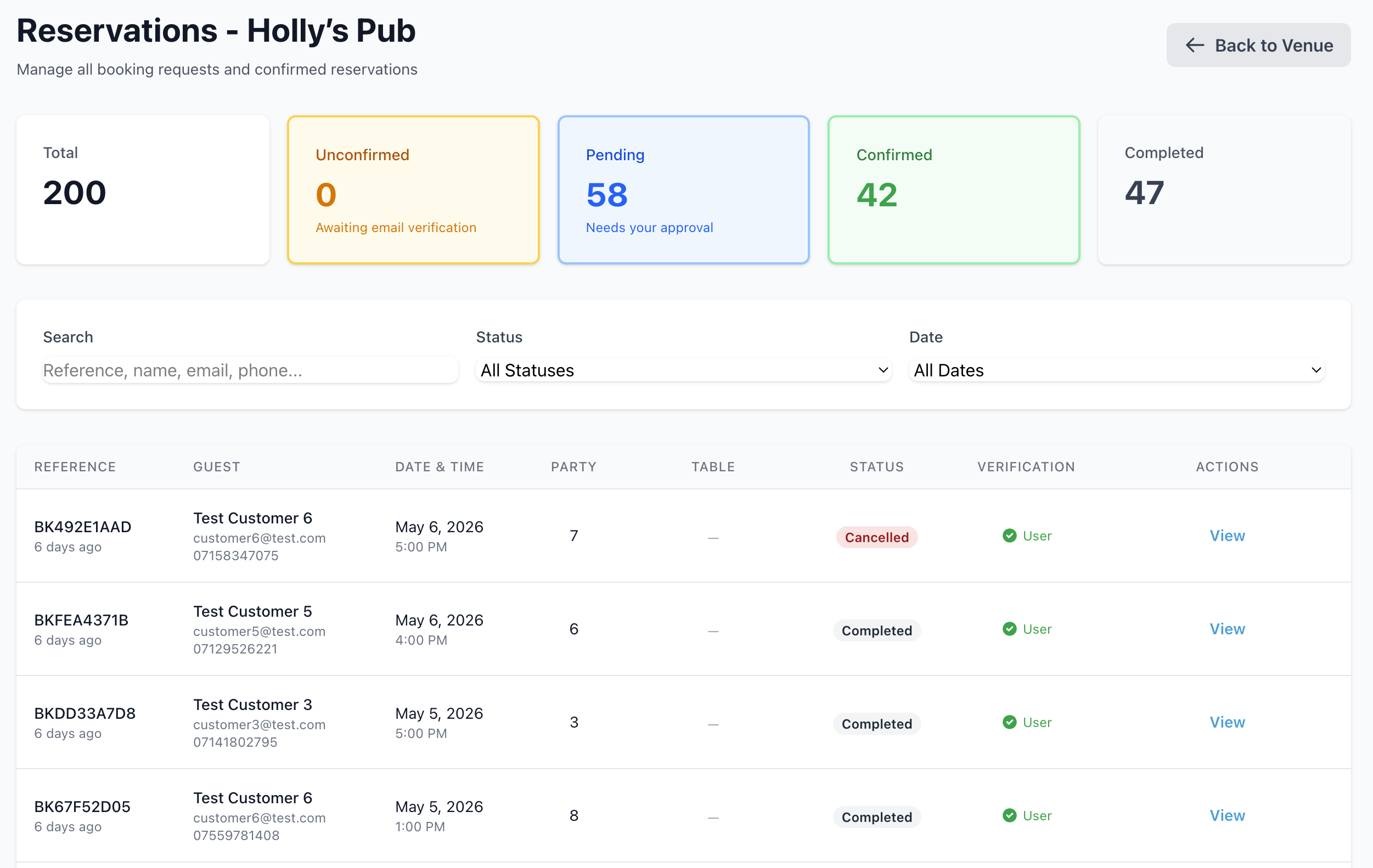
Use this page to see all bookings for a specific venue and date.
Where to Find It
Go to Venue Management > All Venues > View Reservations.
What You Can Do
- Review upcoming and past reservations
- Check booking times and party sizes
- See customer names and contact details
- Track special requests or notes
Search & Filtering
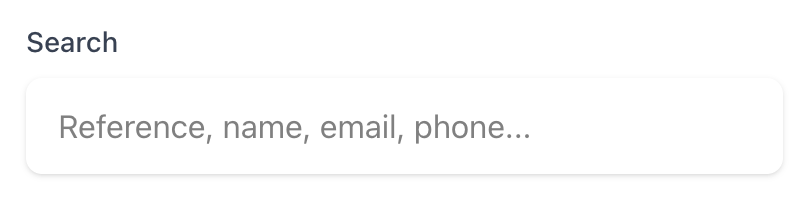
Search
You can search for a reference, name, email or phone number
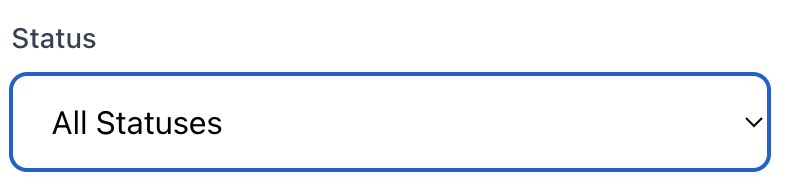
Status
You can use the drop down menu to filter on the below status values
- All Statuses
- Unconfirmed
- Pending
- Confirmed
- Seated
- Compleated
- Canceled
- No Show
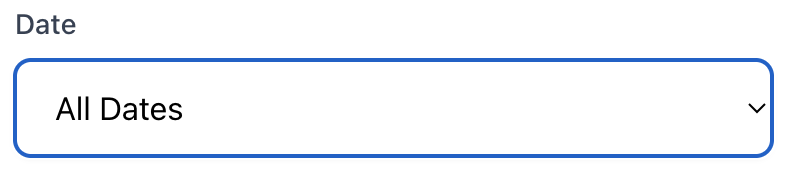
Date
You can use the drop down menu to filter on the below date values
- All Dates
- Today
- Upcoming
- Past
Tips
- Start with today and filter by date range
- Use search to find a booking by name or reference
Actions
You can make specific actions on a reservation that is in a 'Confirmed' or 'Pending' status

Confirm
You can confirm a booking if a customer has not done so via email or their portal. This means when they walk in you can evidence their arrival on the system.
Cancel
If a customer phones up to cancel and does not use their portal, you can search for the booking and cancel it on their behalf.
View
You can view more information about this booking by clicking on 'view' so the pop up window appears.
Next Steps
- Update venue details in Edit Details
- Adjust seating with Tables