
Appearance
All Venues
View, manage, and switch between all your venues in one place.
Overview
The All Venues page gives you a centralized view of all your restaurant and dining venues. You can easily switch between venues, view their status, and manage multiple locations from a single dashboard.
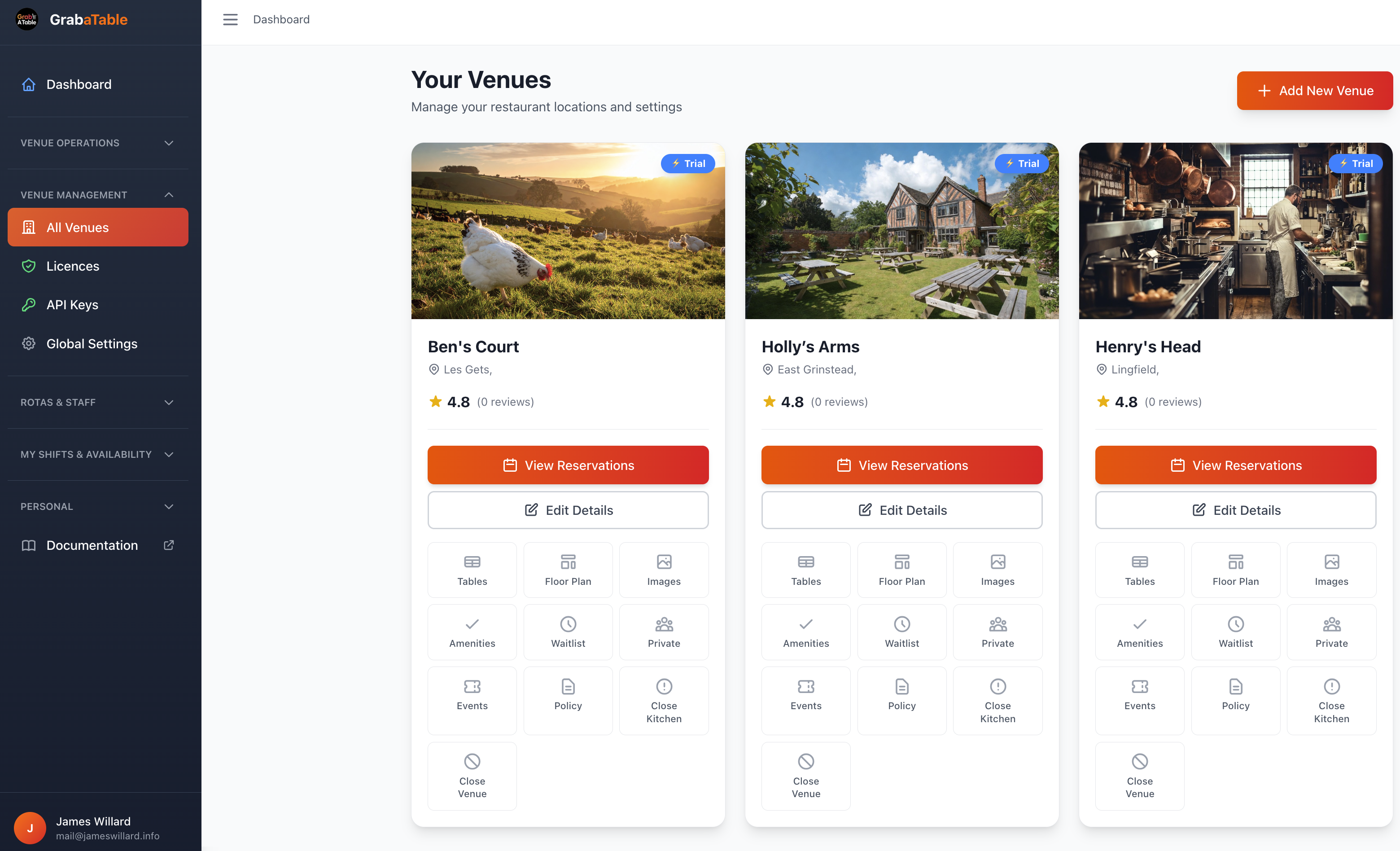
Viewing Your Venues
Venue List
Your venues are displayed in a grid or list format showing:
- Venue Name - The name of your venue
- Location - City and address
- Status - Active, Paused, or Inactive
- Licence Status - Current licence information
- Booking Count - Recent booking activity
- Last Updated - When settings were last modified
Venue Cards
Each venue card displays:
- Venue photo/logo
- Basic information
- Quick action buttons
- Performance metrics
Managing Multiple Venues
Switching Between Venues
To switch to a different venue:
- Click the Venue Selector in the top navigation
- Select the venue you want to manage
- The dashboard will update to show that venue's information
TIP
Use the keyboard shortcut Cmd/Ctrl + K to quickly open the venue switcher.
Adding a New Venue
To add another venue to your account:
- Click Add New Venue button
- Enter the venue details
- Complete the setup wizard
- Activate your venue
Licences Required
Each venue requires its own licence. See the Licences page for more information.
Venue Status
Active
- Venue is live and accepting bookings
- Appears in public venue listings
- All features are enabled
Paused
- Venue is temporarily paused
- Not accepting new bookings
- Existing bookings remain active
- Not visible in public listings
Inactive
- Venue is disabled
- No bookings can be made
- Hidden from all listings
- Requires reactivation to use
Venue Actions
Quick Actions
Available actions for each venue:
- View Dashboard - Go to the venue's dashboard
- Manage Details - Edit venue information
- View Bookings - See all reservations
- Settings - Access venue settings
- Pause/Activate - Change venue status
- Duplicate - Copy settings to a new venue
Bulk Actions
When managing multiple venues:
- Update opening hours across all venues
- Apply global settings
- Export data from multiple venues
- Manage staff access across venues
Organizing Your Venues
Groups and Tags
Organize venues by:
- Location - City or region
- Brand - Chain or brand name
- Type - Restaurant, pub, cafe, etc.
- Custom Tags - Your own organizational system
Filtering and Sorting
Filter venues by:
- Status (Active, Paused, Inactive)
- Licence status
- Location
- Performance metrics
Sort by:
- Name (A-Z)
- Recent activity
- Booking volume
- Date added
Performance Overview
At-a-Glance Metrics
For each venue, see:
- Today's Bookings - Number of reservations today
- Upcoming Events - Special events scheduled
- Staff on Duty - Current shift coverage
- Occupancy Rate - Current and projected
- Recent Reviews - Latest customer feedback
Multi-Venue Dashboard
View aggregated metrics across all venues:
- Total bookings across all locations
- Combined revenue
- Staff utilization
- Customer trends
- Performance comparisons
Venue Settings
Individual Venue Settings
Each venue has its own:
- Booking rules and policies
- Table configurations
- Staff roster
- Opening hours
- Special features
Global Settings
Apply settings across all venues:
- Brand guidelines
- Default policies
- Payment settings
- Communication templates
See Global Settings for more information.
Best Practices
Multi-Venue Management
- Consistent Branding - Maintain brand identity across venues
- Shared Resources - Use templates for efficiency
- Regular Reviews - Check each venue's performance weekly
- Staff Training - Ensure staff understand the system at all locations
- Update Synchronization - Keep information current across all venues
Naming Conventions
Use clear venue names:
- Include location: "Restaurant Name - City Center"
- Add identifiers: "Brand Name - Airport Location"
- Be consistent: Use the same format for all venues
Access Management
Control who can access each venue:
- Assign staff to specific venues
- Set permissions per location
- Use groups for multi-venue managers
- Review access regularly
Troubleshooting
Cannot See All Venues
If you don't see a venue:
- Check if you have been granted access
- Verify the venue status (may be archived)
- Contact account owner for permissions
Switching Issues
If you can't switch venues:
- Clear your browser cache
- Refresh the page
- Check your permissions
- Contact support if issue persists
Common Scenarios
Opening a Second Location
- Add new venue from All Venues page
- Duplicate settings from existing venue
- Customize location-specific details
- Purchase additional licence
- Activate and start taking bookings
Seasonal Closures
For seasonal venues:
- Set venue status to "Paused"
- Update opening hours
- Communicate closure to customers
- Reactivate when reopening
Rebranding
When changing a venue's name:
- Update venue name and details
- Upload new logo and images
- Update booking confirmation emails
- Notify customers of the change
Support
Need help managing your venues?
- Email: [email protected]
- Support: [email protected]
- WhatsApp: WhatsApp Support
Related Pages
- Licences - Manage venue licences
- Global Settings - Settings that apply to all venues
- Venue Management - Individual venue configuration
Pro Tip
Use the venue comparison feature to identify which locations are performing best and replicate successful strategies across your portfolio.