Appearance
Floor Plan
Manage reservations using your venue's visual floor plan.
Overview
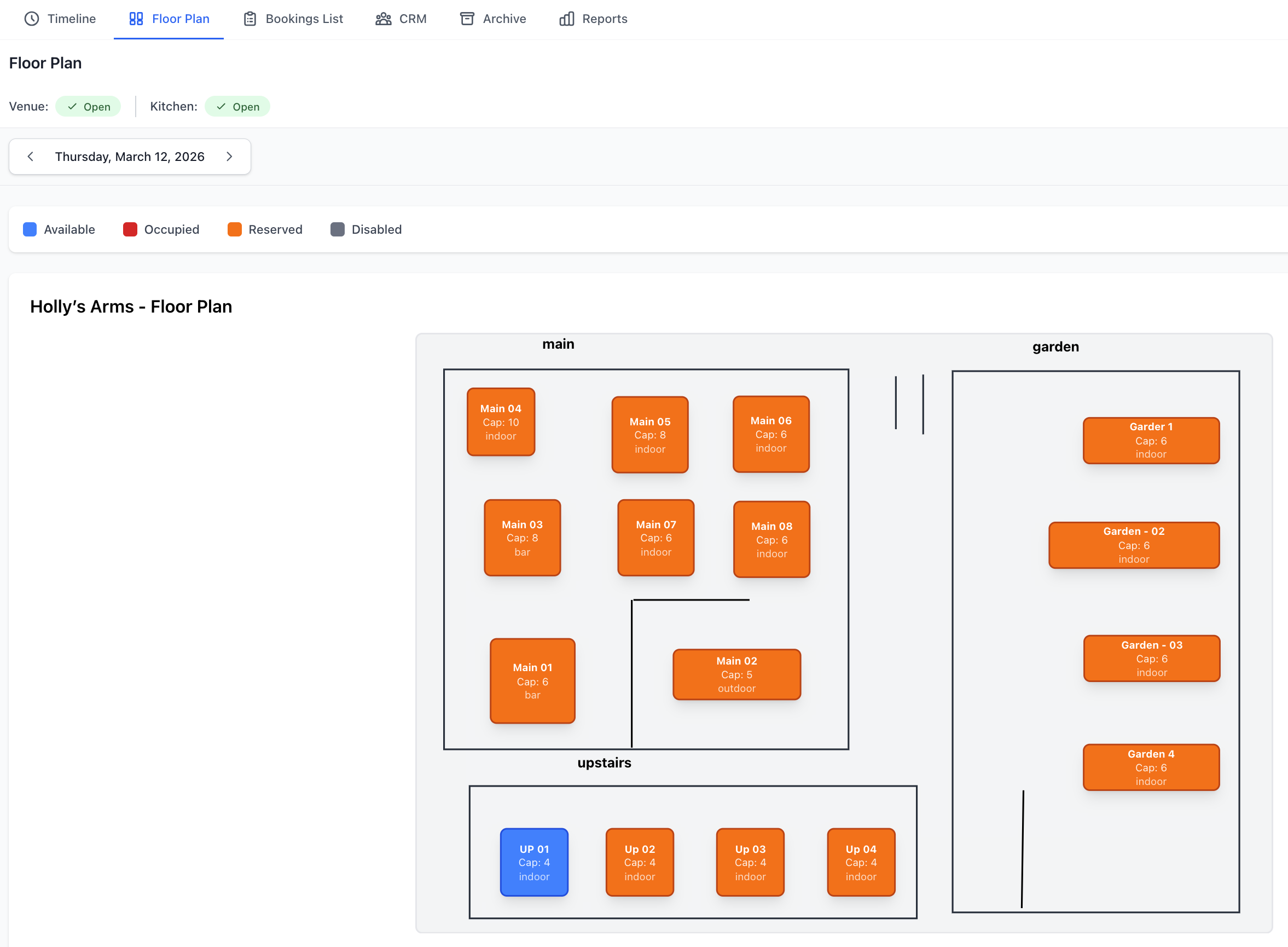
The Floor Plan view displays your venue's layout with tables, seating areas, and booking status in real-time. See which tables are occupied, available, or reserved at a glance. Perfect for hosts and front-of-house staff during service.
Accessing Floor Plan
Navigate to Venue Operations > Floor Plan
Floor Plan Display
Visual Components
Elements Shown
- Table shapes and positions
- Table numbers/names
- Capacity indicators
- Current booking status
- Guest names (when seated)
- Time indicators
- Area boundaries
- Walkways and features
Interactive Elements
- Click tables for details
- Drag to assign bookings
- Zoom and pan
- Rotate view (if configured)
- Layer controls
- Real-time updates
View Modes
Live View (Default)
- Current status
- Real-time occupancy
- Active bookings
- Available tables
- Service in progress
Future View
- Select later time
- Preview upcoming
- Pre-plan seating
- Advance reservations
- Forward planning
Time Slider
- Scrub through day
- See patterns
- Identify peaks
- Plan accordingly
Table Status Colors
Status Indicators
Available - Green outline
- No booking
- Ready to seat
- Walk-ins welcome
Reserved - Blue filled
- Booking upcoming
- Guest expected
- Arrival time shown
Seated - Orange filled
- Guests present
- Service in progress
- Duration timer
Ready to Clear - Purple outline
- Guests finished
- Ready for turnover
- Needs clearing
Dirty/Clearing - Red filled
- Being cleared
- Not available yet
- Staff assigned
Out of Service - Grey crossed
- Unavailable
- Maintenance
- Blocked
Combined - Linked tables
- Multiple tables joined
- Large party
- Group indicator
Special Badges
VIP - Star icon
- Important guest
- Special attention
- Premium service
Birthday/Celebration - Cake icon
- Special occasion
- Prepare celebration
- Extra touches
First Time Customer - "1st" badge
- New customer
- Make good impression
- Extra care
Dietary Requirements - Utensils icon
- Special needs
- Kitchen informed
- Allergen alert
Notes - Message icon
- Booking has notes
- Click to view
- Important info
Managing Bookings
Assigning Tables
Drag and Drop
- Unassigned booking panel
- Drag booking to table
- Drop on table
- Confirm assignment
- Table updated
Click to Assign
- Click on table
- View available bookings
- Select booking
- Assign to table
- Confirm
Multiple Tables
- Select party size
- Choose tables to combine
- Link tables
- Assign booking
- Visual connection
Seating Guests
When guests arrive:
- Find their booking
- Verify details
- Click Seat Guests
- Table status changes
- Service timer starts
- Kitchen notified
Walk-In Seating
- Find available table
- Click Seat Walk-In
- Enter party details
- Create booking
- Seat immediately
See Walk In for details.
Moving Bookings
Re-seat or relocate:
Between Tables
- Click booked table
- Drag to new table
- Check capacity
- Confirm move
- Update complete
Common Reasons
- Guest preference
- Table upgrade
- Combine parties
- Accommodate request
- Operational needs
Table Configuration
Table Properties
View table details:
Basic Info
- Table number/name
- Seating capacity
- Minimum party size
- Shape and dimension
- Location/area
Booking Settings
- Online bookable
- VIP only
- Special occasions
- Advance booking required
- Walk-ins allowed
Service Settings
- Turn time (minutes)
- Service type
- Custom notes
- Staff assignments
Combining Tables
Join for large parties:
- Select first table
- Hold Shift, select additional
- Right-click > Combine Tables
- Temporary or permanent
- Visual link appears
Uncombine
- Select combined tables
- Right-click > Separate Tables
- Bookings remain
- Tables independent
Blocking Tables
Make unavailable:
- Select table(s)
- Right-click > Block Table
- Choose reason:
- Maintenance
- Reserved for VIP
- Staff event
- Out of service
- Other
- Set duration
- Table blocked
Unblock
- Automatic after duration
- Manual unblock anytime
- Status returns to available
Areas & Zones
Multiple Areas
If venue has sections:
Area Types
- Main dining room
- Bar area
- Outdoor patio
- Private room
- Lounge
- Terrace
Area Switching
- Dropdown selector
- Tab navigation
- Show all option
- Combined view
Area Settings
- Operating hours
- Capacity limits
- Service style
- Staff assignments
- Special rules
Multiple Floors
Navigate floors:
Floor Selector
- Ground floor
- First floor
- Second floor
- Custom names
Quick Switch
- Keyboard shortcuts
- Floor tabs
- Dropdown menu
- Visual floor plan
Service Management
During Service
Real-time operations:
Host Station
- Greeting customers
- Checking availability
- Seating assignments
- Managing waitlist
- Coordinating flow
Table Management
- Monitor occupied tables
- Track dining duration
- Identify ready tables
- Coordinate clearing
- Optimize turnover
Communication
- Kitchen coordination
- Server assignments
- Manager updates
- Team messaging
Turn Time Management
Optimize table use:
Turn Time Display
- Expected duration shown
- Elapsed time tracking
- Remaining time estimate
- Color alerts
Alerts
- Table overrunning
- Quick turn needed
- Ready for next booking
- Gap opportunities
Waitlist Integration
Manage waiting customers:
Waitlist Panel
- Customers waiting
- Party sizes
- Wait time estimates
- Priority order
- Special requests
Seating from Waitlist
- Table becomes available
- Check waitlist
- Select next customer
- Notify customer
- Seat immediately
Booking Information
Quick View
Hover over table:
Popup Shows
- Guest name
- Party size
- Booking time
- Arrival time
- Contact phone
- Special requests
- Booking status
Detailed View
Click table for full details:
Information Displayed
- Complete booking details
- Guest history
- Past visits
- Preferences
- Dietary requirements
- Notes and comments
- Payment information
Available Actions
- Edit booking
- Move table
- Mark as seated
- Mark as completed
- Cancel booking
- Send message
- Add notes
Visual Customization
Display Options
Configure view:
Show/Hide
- Table numbers
- Capacity labels
- Guest names
- Booking times
- Special indicators
- Area boundaries
- Furniture items
Color Schemes
- Default colors
- High contrast
- Color blind friendly
- Custom colors
- Dark mode
- Light mode
Zoom & Pan
Navigate large plans:
Zoom Controls
- Zoom in (+)
- Zoom out (-)
- Fit to screen
- Actual size
- Custom zoom level
Pan View
- Click and drag
- Arrow navigation
- Mini-map (if enabled)
- Touch gestures (mobile)
Mobile & Tablet
Touch Interface
Optimized controls:
Touch Gestures
- Tap for details
- Pinch to zoom
- Swipe to pan
- Long press for menu
- Two-finger rotate
Mobile Features
- Essential information
- Quick actions
- Simplified interface
- One-handed operation
- Offline capability
Host Stand Use
Perfect for greeting station:
- iPad/tablet mounted
- Quick glance status
- Drag-and-drop seating
- Real-time updates
- Guest-facing option
Printing & Export
Print Floor Plan
Generate printouts:
Print Options
- Current status
- Empty floor plan
- Booking overlay
- Table assignments
- Color or B&W
Uses
- Service briefing
- Staff reference
- Event planning
- Training materials
Export
Download floor plan:
- PDF format
- Image (PNG/JPG)
- With or without bookings
- Different time views
- High resolution
Best Practices
Effective Floor Plan Use
- Keep Current - Update status immediately
- Strategic Seating - Balance across venue
- VIP Placement - Best tables for special guests
- Traffic Flow - Avoid congestion
- Team Communication - Share changes
Optimizing Seating
- Even Distribution - Spread across sections
- Server Balance - Fair workload
- Kitchen Coordination - Manage ticket flow
- Table Combinations - Creative use of space
- Guest Preferences - Honor when possible
Service Flow
- Pre-Service Check - Verify setup
- Active Monitoring - Watch throughout service
- Proactive Clearing - Stay ahead
- Waitlist Management - Keep moving
- Post-Service Review - Analyze patterns
Troubleshooting
Floor Plan Not Loading
If plan won't display:
- Check internet connection
- Refresh browser
- Verify floor plan exists
- Check permissions
- Clear cache
- Contact support
Tables Not Updating
Status not changing:
- Refresh view
- Check connection
- Verify saved changes
- Review error messages
- Check system status
- Manual update
Can't Move Bookings
Drag and drop issues:
- Check table capacity
- Verify availability
- Review conflicts
- Check permissions
- Use edit instead
- Contact support
Wrong Table Status
Incorrect display:
- Update status manually
- Check time/date
- Verify booking details
- Refresh floor plan
- Clear browser cache
- Report issue
Support
Need help with Floor Plan?
- Email: [email protected]
- WhatsApp: WhatsApp Support
Related Pages
- Timeline - Timeline view of bookings
- Bookings List - List view of reservations
- Tables - Configure tables
- Walk In - Handle walk-in guests
Host Station Essential
Floor Plan view is perfect for front-of-house. Display on a tablet at your host stand for seamless guest management.