
Appearance
My Shifts
View and manage your personal work schedule.
Overview
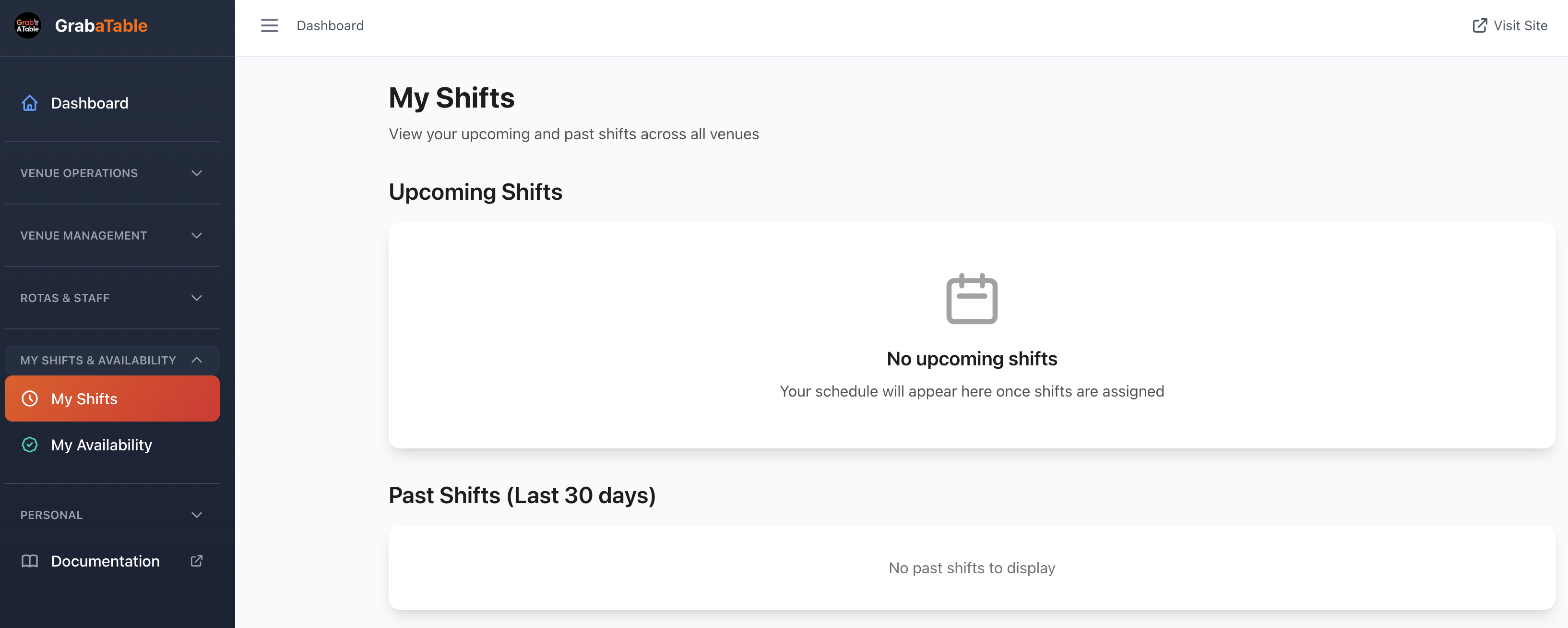
My Shifts provides your personal view of scheduled work shifts. Check your upcoming shifts, view past shifts, request changes, and stay informed about your work schedule—all in one place.
Accessing My Shifts
Navigate to My Shifts & Availability > My Shifts
Viewing Your Schedule
Upcoming Shifts
See your scheduled shifts:
Display Options
- List view (default)
- Calendar view
- Timeline view
- Weekly overview
- Monthly overview
Information Shown
- Date and day
- Start time
- End time
- Duration
- Role/position
- Venue location
- Break times
- Total hours
- Shift notes
- Manager instructions
Shift Status
Confirmed - Green badge
- You've accepted the shift
- Scheduled and confirmed
- Expected to attend
Pending - Orange badge
- Awaiting your confirmation
- Action required
- Accept or decline
Swapped - Blue badge
- Shift swap in progress
- Pending approval
- Alternative person assigned
Cancelled - Red badge
- Shift cancelled
- No longer scheduled
- Reason provided
Completed - Grey badge
- Past shift worked
- Clocked in/out
- Historical record
Shift Details
Viewing Full Details
Click any shift to see:
Basic Information
- Full date and time
- Duration in hours
- Location/venue
- Your role
- Department/area
Break Information
- Break duration
- Break start time
- Paid/unpaid status
- Multiple breaks
Instructions
- Manager notes
- Special tasks
- Uniform requirements
- Equipment needed
- Meeting points
Shift Cost
- Your hourly rate
- Regular hours pay
- Overtime hours (if any)
- Break deductions
- Total shift cost
Contact Information
- Shift manager
- Colleagues on shift
- Emergency contact
- Venue phone
Confirming Shifts
Shift Acceptance
When assigned a new shift:
- Notification received
- View shift details
- Check availability
- Click Accept or Decline
- Add notes (optional)
- Confirm decision
Accept Shift
- Confirms attendance
- Adds to your schedule
- Manager notified
- Reminder set
Decline Shift
- Provide reason
- Manager notified
- Will be reassigned
- No penalty if legitimate
Auto-Acceptance
Set preferences:
Auto-Accept Settings
- Accept all shifts
- Accept specific roles
- Accept certain days
- Accept within hours limit
- Require manual approval
Configure in profile settings.
Shift Swaps
Requesting a Swap
Can't work a shift? Request a swap:
- Select the shift
- Click Request Swap
- Find replacement:
- Browse available staff
- Send swap request
- Multiple staff notifications
- Wait for response
- Manager reviews
- Manager approves/denies
- Shift transferred
Responding to Swap Requests
When colleagues request you take their shift:
- Receive swap request
- View shift details
- Check your availability
- Accept or decline
- Manager approval needed
- Shift assigned if approved
Swap Status
Track swap progress:
- Pending - Awaiting staff response
- Staff Accepted - Waiting manager approval
- Approved - Swap complete
- Denied - Swap rejected
- Cancelled - Request withdrawn
Shift Pickup
Available Shifts
Pick up extra shifts:
View Open Shifts
- Shifts needing coverage
- Last-minute openings
- Extra hours available
- Filtered by role/venue
Claim Shift
- Browse available shifts
- Check compatibility
- Click Pick Up Shift
- Manager approval (if required)
- Added to your schedule
Shift Pickup Rules
- Must be qualified for role
- Can't exceed maximum hours
- No schedule conflicts
- Rest period compliance
- Manager discretion
Drop Shift Requests
Requesting to Drop
Need to give up a shift:
- Select shift
- Click Drop Shift
- Provide reason
- Indicate urgency
- Submit request
- Manager reviews
- Approved or denied
Valid Reasons
- Illness
- Emergency
- Double-booked
- Personal commitments
- Technical error
Advance Notice
- 24+ hours: Usually approved
- 12-24 hours: Manager discretion
- Under 12 hours: Emergency only
- Same day: Exceptional circumstances
Time-Off Requests
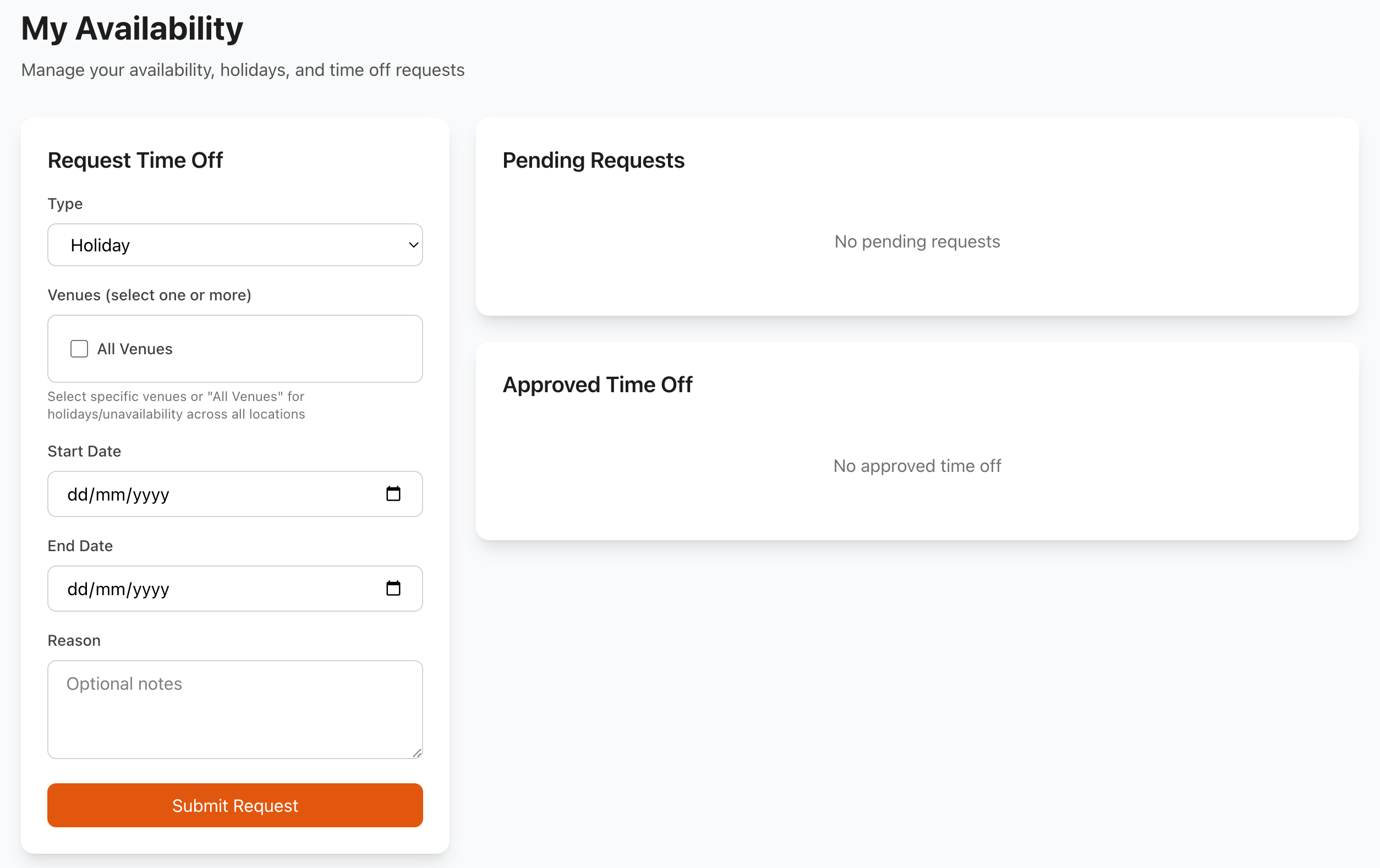
Requesting Time Off
Plan ahead for time off:
- Go to Request Time Off
- Select dates
- Choose request type:
- Vacation/holiday
- Personal day
- Medical appointment
- Family emergency
- Other
- Add notes
- Submit request
Time-Off Status
Track your requests:
- Pending - Awaiting approval
- Approved - Confirmed time off
- Denied - Request rejected
- Cancelled - You withdrew request
Time-Off Balance
View your entitlements:
- Annual leave balance
- Days taken this year
- Days remaining
- Pending requests
- Accrued hours
- Carry-over days
Notifications & Reminders
Notification Types
Stay informed:
Schedule Notifications
- New shift assigned
- Schedule published
- Shift changed
- Shift cancelled
- Swap updates
Reminder Notifications
- Shift starting soon
- Tomorrow's shifts
- Weekly schedule
- Confirmation needed
- Time-off approved
Action Required
- Confirm attendance
- Respond to swap request
- Update availability
- Complete training
- Acknowledge policy
Notification Settings
Customize alerts:
Channels
- Email notifications
- SMS/text messages
- Push notifications (mobile app)
- In-app notifications
Timing
- 24 hours before shift
- 2 hours before shift
- Custom timing
- Immediate for urgent
- Daily digest (optional)
Clock In/Out
Shift Attendance
Record your work time:
Clock In
- Arrive at work
- Open app/system
- Click Clock In
- Confirm location (if GPS enabled)
- Start shift
Clock Out
- Finish shift
- Click Clock Out
- Confirm breaks taken
- Verify hours
- Submit timesheet
Break Tracking
Record breaks:
- Start break: Begin Break
- End break: End Break
- Automatic tracking
- Paid vs unpaid breaks
- Break duration limits
- Compliance monitoring
Attendance Records
View your work history:
- Actual vs scheduled time
- Late arrivals
- Early departures
- Break durations
- Total hours worked
- Overtime hours
- Attendance rate
Shift Calendar
Calendar View
Visual schedule display:
Calendar Features
- Monthly overview
- Week view
- Day view
- Color-coded shifts
- Multi-venue display
- Personal events (optional)
Interactions
- Click shift for details
- Drag to filter dates
- Export to personal calendar
- Print schedule
- Share with family
Calendar Export
Sync with personal calendar:
Export Options
- iCal format
- Google Calendar
- Outlook
- Apple Calendar
- Automatic sync
Subscribe to Feed
- Copy calendar URL
- Add to calendar app
- Automatic updates
- Real-time changes
- Always current
Mobile App
Mobile Features
Manage shifts on-the-go:
Key Functions
- View schedule
- Accept/decline shifts
- Request swaps
- Pick up shifts
- Clock in/out
- Set availability
- Receive notifications
Offline Access
- Downloaded schedule
- View shifts offline
- Sync when online
- Cached information
Push Notifications
Stay updated:
- Instant alerts
- Badge counts
- Sound notifications
- Lock screen display
- Notification center
Shift History
Past Shifts
Review work history:
Information Available
- Date worked
- Hours worked
- Role performed
- Venue location
- Pay earned
- Attendance status
- Manager notes
- Self-assessment
Filters & Search
- Date range
- By venue
- By role
- By pay period
- Search by keyword
Earnings Summary
Track your income:
Earnings Display
- Current pay period
- Weekly earnings
- Monthly earnings
- Year-to-date
- Overtime earnings
- Tips/gratuities
- Bonuses
Breakdown
- Regular hours × rate
- Overtime hours × rate
- Holiday pay
- Additional payments
- Deductions
- Net pay (estimated)
Performance Feedback
Shift Ratings
Manager feedback:
Rating Categories
- Punctuality
- Work quality
- Customer service
- Team collaboration
- Initiative
- Overall performance
Viewing Feedback
- Recent ratings
- Average scores
- Trends over time
- Manager comments
- Areas of strength
- Development areas
Self-Assessment
Reflect on your performance:
- Rate your own shift
- Note challenges
- Record achievements
- Suggest improvements
- Request feedback
- Set personal goals
Communication
Messaging Managers
Contact management:
Message Types
- Shift questions
- Swap requests
- Time-off requests
- General inquiries
- Emergency notifications
Response Times
- Urgent: Within 1 hour
- Important: Within 4 hours
- General: Within 24 hours
- Non-urgent: 1-2 days
Team Communication
Connect with colleagues:
- View who else is working
- Contact colleagues
- Team announcements
- Group messages
- Shift handover notes
Best Practices
Managing Your Schedule
- Check Regularly - Review schedule daily
- Confirm Promptly - Accept/decline shifts quickly
- Plan Ahead - Request time off in advance
- Communicate Early - Notify of issues immediately
- Be Reliable - Honor your commitments
Being a Good Team Member
- Punctuality - Arrive on time, ready to work
- Flexibility - Help with swaps when possible
- Communication - Keep managers informed
- Professionalism - Take shifts seriously
- Positivity - Maintain good attitude
Maximizing Earnings
- Pick Up Shifts - Take available hours
- Learn New Roles - More opportunities
- Availability - Make yourself available
- Reliability - Build trust for more shifts
- Skills - Develop expertise for better pay
Troubleshooting
Can't See My Schedule
If schedule not visible:
- Check date range
- Verify you have upcoming shifts
- Refresh page/app
- Check internet connection
- Verify account active
- Contact manager
Shift Not Showing
Missing a shift you know about:
- Check schedule published
- Verify date range
- Check filters applied
- Look in pending shifts
- Confirm with manager
- Check email for notification
Notification Issues
Not receiving alerts:
- Check notification settings
- Verify email/phone correct
- Check spam/junk folder
- Update app to latest version
- Check device notification permissions
- Enable push notifications
Clock In/Out Problems
Time tracking issues:
- Check GPS/location enabled
- Verify internet connection
- Check you're at venue
- Time sync correct
- Update app
- Report to manager immediately
Support
Need help with My Shifts?
- Your Manager - First point of contact
- Email: [email protected]
- WhatsApp: WhatsApp Support
- In-App Help - Help section in app
Related Pages
- My Availability - Set your availability
- Staff - Staff management (managers)
- Rota Timeline - Full schedule view (managers)
Stay Organized
Enable calendar sync and push notifications to never miss a shift. Check your schedule every morning!