
Appearance
Forgot Password
Reset your password if you can't remember it or need to change it for security reasons.
Password Reset Process
Step 1: Go to the Forgot Password Page
Visit www.grabatable.app/forgot-password.
Step 2: Enter Your Email Address
Type the email address associated with your account.
TIP
Use the same email address you used to register your account.
Step 3: Submit the Request
Click Send Reset Link to receive a password reset email.
Step 4: Check Your Email
Look for an email from Grab A Table with the subject "Password Reset Request."
WARNING
The reset link expires after 1 hour for security reasons. If it expires, you'll need to request a new one.
Step 5: Click the Reset Link
Open the email and click the Reset Password button or link.
Step 6: Create a New Password
Enter your new password twice to confirm it.
Password Requirements:
- Minimum 8 characters
- At least one uppercase letter
- At least one lowercase letter
- At least one number
- At least one special character (recommended)
TIP
Create a strong, unique password. Consider using a password manager to generate and store secure passwords.
Step 7: Confirm Reset
Click Reset Password to save your new password.
Step 8: Sign In
You'll be redirected to the sign-in page where you can use your new password.
Common Issues
Reset Email Not Received
If you don't receive the reset email within a few minutes:
- Check spam/junk folder - Reset emails sometimes get filtered
- Check the email address - Make sure you entered the correct email
- Wait a few minutes - Email delivery can sometimes be delayed
- Check email settings - Ensure you haven't blocked emails from Grab A Table
- Try again - Request a new reset link
Reset Link Expired
If your reset link has expired:
- Go back to the forgot password page
- Request a new reset link
- Complete the reset process quickly (within 1 hour)
"Email Not Found" Error
If you see this error:
- Double-check the email address for typos
- Try any other email addresses you might have used
- You may need to register a new account if you never created one
Password Doesn't Meet Requirements
If you see an error about password requirements:
- Ensure your password is at least 8 characters long
- Include uppercase and lowercase letters
- Add at least one number
- Consider adding special characters (!@#$%^&*)
Still Can't Reset Password
If you're still having trouble:
- Clear your browser cache and cookies
- Try a different browser
- Disable browser extensions temporarily
- Contact support for help
If MFA is Enabled
If you have Multi-Factor Authentication (MFA) enabled:
- After resetting your password, you'll still need your MFA method to sign in
- If you've lost access to your MFA device, use a backup code
- Without MFA access or backup codes, contact support with identity verification
Account Security
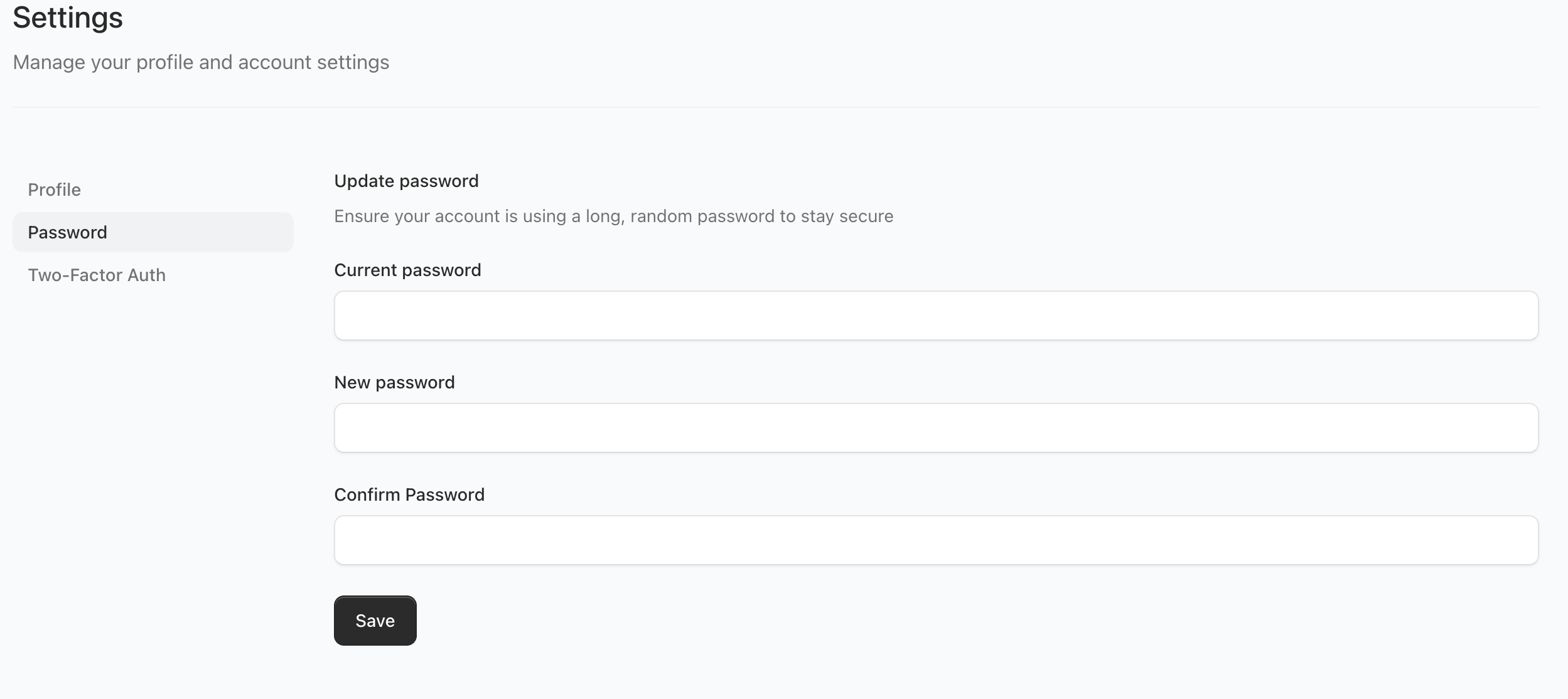
After Resetting Your Password
- Sign in immediately - Use your new password to verify it works
- Update saved passwords - Update any password managers or saved credentials
- Review account activity - Check for any unauthorized access
- Enable MFA - Add Multi-Factor Authentication if you haven't already
- Update security questions - Review recovery options in account settings
Password Best Practices
- Use unique passwords - Don't reuse passwords from other accounts
- Use a password manager - Tools like 1Password, LastPass, or Bitwarden
- Change regularly - Update your password every 3-6 months
- Never share - Don't give your password to anyone
- Avoid common passwords - No "password123" or personal info
Signs You Should Change Your Password
Change your password immediately if:
- You suspect unauthorized access to your account
- You've used the password on a compromised website
- You've shared the password with someone
- The password is weak or easy to guess
- You haven't changed it in over 6 months
Getting Help
Contact Support
If you need assistance with password reset:
- Email: [email protected]
- WhatsApp: WhatsApp Support
When contacting support, provide:
- Your account email address
- Description of the issue
- Any error messages you're seeing
Identity Verification
For security, support may ask you to verify your identity before helping with password resets.
Preventing Future Password Issues
- Save securely - Use a password manager
- Write it down safely - Keep in a secure physical location if needed
- Set up recovery options - Keep contact info updated
- Enable MFA - Adds security even if password is compromised
- Regular updates - Change passwords periodically
Next Steps
- Sign in with your new password
- Set up Multi-Factor Authentication for extra security
- Review your account settings
- Update your security preferences