
Appearance
Rota List
View and manage staff schedules in a detailed list format.
Overview
The Rota List provides a detailed, text-based view of all scheduled shifts. Perfect for quick searches, bulk editing, and generating reports. Complements the visual timeline with detailed information and powerful filtering.
Accessing Rota List
Navigate to Rotas & Staff > Rota List
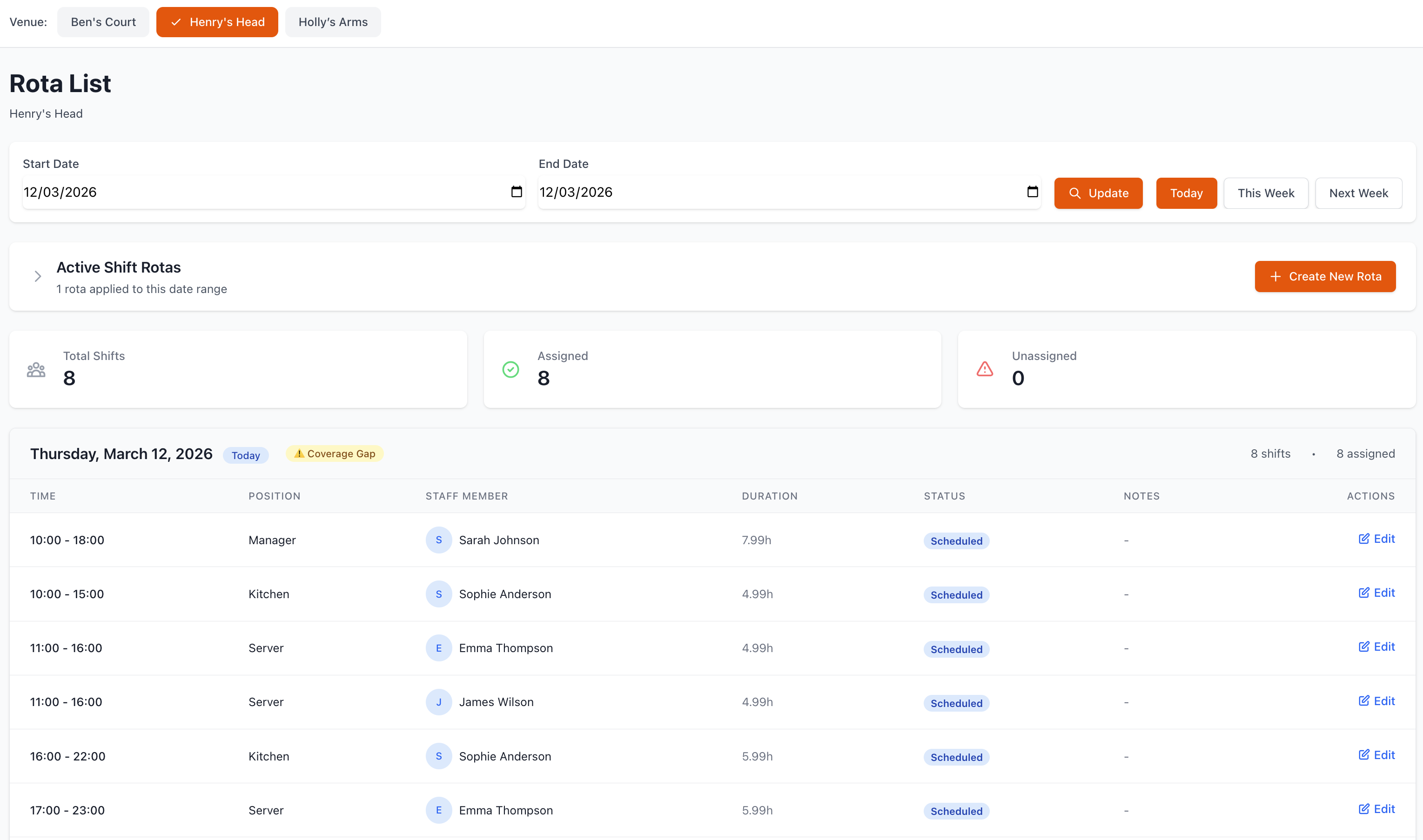
List View Layout
Default Display
The list shows:
Shift Columns
- Date and day
- Staff member name
- Role/position
- Start time
- End time
- Duration (hours)
- Status
- Venue (if multiple locations)
Optional Columns
- Break duration
- Hourly rate
- Shift cost
- Notes
- Assigned by
- Created date
- Last modified
Customizing Columns
Configure your view:
- Click Columns or gear icon
- Check/uncheck columns to show/hide
- Drag to reorder columns
- Set default column widths
- Save as preset (optional)
Sorting
Click column headers to sort:
- Date - Chronological order
- Staff Name - Alphabetical
- Time - Start/end time
- Duration - Longest first
- Status - Confirmed, pending, etc.
- Cost - Highest to lowest
Click again to reverse sort order (ascending/descending).
Filtering Shifts
Date Filters
Narrow by date:
Preset Ranges
- Today
- This week
- Next week
- This month
- Next month
- Custom range
Date Range Picker
- Select start date
- Select end date
- Apply filter
- Clear to reset
Staff Filters
Filter by personnel:
Individual Staff
- Select from dropdown
- Multiple selection
- Include/exclude
- Team groups
By Role
- All managers
- All chefs
- All servers
- All bartenders
- Custom roles
By Employment Type
- Full-time
- Part-time
- Casual
- Contract
- Temporary
Status Filters
Filter by shift status:
- Published - Released to staff
- Draft - Not yet published
- Confirmed - Staff accepted
- Pending - Awaiting confirmation
- Completed - Past shifts
- Cancelled - No longer scheduled
Venue Filters
Multi-venue operations:
- All venues
- Specific location
- Venue group
- Multiple selection
Advanced Filters
Combine multiple criteria:
Shift Attributes
- Duration (min/max hours)
- Time of day
- Day of week
- Cost range
- Overtime shifts
- Split shifts
Staff Attributes
- Experience level
- Availability
- Certification
- Department
- Manager
Searching
Quick Search
Fast lookup:
- Use search box
- Type staff name, role, or notes
- Results filter instantly
- Clear to reset
Advanced Search
Detailed queries:
- Search in specific fields
- Multiple keywords
- Date combinations
- Complex criteria
- Saved searches
Viewing Shift Details
Click to Expand
See full shift information:
- Click on any shift row
- Details panel opens
- View all information
- Click outside to close
Details Include:
- All shift information
- Staff contact details
- Assigned tasks
- Manager notes
- Change history
- Related shifts
Quick Actions
From list view:
- Edit - Modify shift details
- Delete - Remove shift
- Clone - Create copy
- Message - Contact staff
- Report - Generate shift report
Creating Shifts
Add Single Shift
Create new shift from list:
- Click Add Shift or +
- Fill in shift details:
- Select staff member
- Choose date
- Set start/end times
- Select role
- Add notes
- Save shift
- Notify staff (optional)
Bulk Create
Create multiple shifts:
- Click Bulk Add
- Select date range
- Choose staff members
- Set repeat pattern
- Configure shift times
- Review preview
- Create all shifts
Editing Shifts
Edit Single Shift
Modify individual shift:
- Click on shift or edit icon
- Change any details
- Add/update notes
- Save changes
- Notify staff of changes
Bulk Edit
Update multiple shifts:
- Select shifts (checkboxes)
- Click Bulk Edit
- Choose field to update
- Enter new value
- Apply to all selected
- Confirm changes
Bulk Edit Options:
- Change start time
- Change end time
- Adjust duration
- Update role
- Change venue
- Add notes
- Update status
Copy/Paste Shifts
Duplicate schedules:
Copy Week
- Select week to copy
- Click Copy Week
- Choose destination week
- Paste schedule
- Adjust as needed
Copy Pattern
- Select shift pattern
- Copy to clipboard
- Select new dates
- Paste pattern
- Modify if needed
Deleting Shifts
Delete Single Shift
Remove individual shift:
- Select shift
- Click delete icon
- Confirm deletion
- Notify staff (optional)
- Shift removed
Bulk Delete
Remove multiple shifts:
- Select shifts to delete
- Click Delete Selected
- Review list
- Confirm deletion
- Batch notifications sent
Use Cases:
- Cancel event shifts
- Remove old drafts
- Clear error entries
- Seasonal closures
Publishing Schedules
Draft vs. Published
Draft Status
- Not visible to staff
- Work in progress
- Can be modified freely
- No notifications sent
Published Status
- Visible to staff
- Staff receive notifications
- Locked for major changes
- Change tracking enabled
Publishing Process
Release schedule to staff:
- Complete draft schedule
- Review for conflicts
- Check coverage
- Click Publish
- Select publish range
- Confirm publication
- Staff notified automatically
Un-publishing
Retract published schedule:
- Select published shifts
- Click Unpublish
- Shifts return to draft
- Staff notified of change
- Make corrections
- Re-publish when ready
Exporting & Reporting
Export List
Download schedule data:
Format Options
- Excel (.xlsx)
- CSV (.csv)
- PDF (formatted)
- Google Sheets
- Text file
Export Settings
- Click Export
- Select date range
- Choose columns to include
- Select format
- Download file
Report Generation
Create detailed reports:
Standard Reports
- Weekly schedule
- Monthly overview
- Staff hours summary
- Labor cost report
- Overtime report
- Attendance summary
Custom Reports
- Choose report type
- Select parameters
- Configure layout
- Generate report
- Download or email
Print Options
Professional printouts:
Print Settings
- Portrait/landscape
- Page size
- Margins
- Headers/footers
- Color options
- Grouped by staff/date
Labor Cost Analysis
Cost Calculations
Real-time cost tracking:
Per Shift
- Hours × hourly rate
- Overtime calculations
- Break time (paid/unpaid)
- Allowances/bonuses
- Total shift cost
Summary Totals
- Daily labor cost
- Weekly labor cost
- Monthly projections
- Budget vs. actual
- Cost per venue
- Department costs
Budget Monitoring
Stay within budget:
Visual Indicators
- Green: Under budget
- Amber: Approaching limit
- Red: Over budget
- Percentage of budget used
- Remaining budget
Budget Alerts
- Warning at 80% budget
- Alert at 100% budget
- Overtime warnings
- Excessive hours
- Cost overruns
Shift Swaps & Requests
Pending Requests
View and manage:
Request Types
- Shift swap requests
- Time off requests
- Shift pickup offers
- Shift drop requests
- Availability changes
Management Actions
- Review request details
- Check coverage impact
- Verify qualifications
- Approve or deny
- Notify all parties
Request History
Track all requests:
- Date submitted
- Request type
- Staff member
- Manager decision
- Reason/notes
- Resolution date
Attendance Tracking
Clock In/Out Data
Compare scheduled vs actual:
Metrics Displayed
- Scheduled time
- Actual start time
- Actual end time
- Late arrivals
- Early departures
- Total hours worked
- Variance
Color Coding
- Green: On time
- Orange: Slightly late
- Red: Significantly late
- Grey: No-show
Attendance Rates
Monitor punctuality:
- Individual attendance %
- Team averages
- Trend analysis
- Problem identification
- Recognition opportunities
Multi-Venue Management
Venue Switching
For multiple locations:
View Options
- All venues combined
- Single venue
- Venue comparison
- Consolidated view
Quick Switch
- Dropdown selector
- Venue tabs
- Keyboard shortcuts
- Recent venues
Cross-Venue Scheduling
Staff working multiple locations:
- Visual indicators
- Travel time considerations
- Location conflicts
- Cost allocation
- Reporting by venue
Notifications
Automatic Alerts
System notifications for:
Schedule Events
- New shifts assigned
- Schedule published
- Shift changed
- Shift cancelled
- Shift reminders
Request Updates
- Swap approved/denied
- Time off approved
- Shift claimed
- Coverage needed
- Manager decisions
Compliance Warnings
- Overtime approaching
- Rest period violations
- Excessive hours
- Missing breaks
- Labor law issues
Manual Notifications
Send custom messages:
- Select staff members
- Click Message or Notify
- Choose notification type
- Write message
- Send via email/SMS/app
Best Practices
Efficient List Management
- Use Filters - Narrow to relevant shifts
- Save Views - Custom filter presets
- Bulk Actions - Save time on repetitive tasks
- Regular Reviews - Check list daily
- Export Backups - Regular data exports
Schedule Planning
- Plan Ahead - 2-3 weeks minimum
- Check Costs - Monitor labor budget
- Review Conflicts - Address warnings
- Balance Teams - Mix experience levels
- Communicate Early - Publish schedules promptly
Data Accuracy
- Regular Updates - Keep information current
- Verify Changes - Double-check edits
- Document Notes - Add context
- Track Changes - Monitor history
- Audit Regularly - Spot errors early
Troubleshooting
List Not Updating
If data doesn't refresh:
- Refresh page
- Check filters applied
- Verify date range
- Clear browser cache
- Check internet connection
Export Issues
Problems downloading:
- Try different format
- Reduce date range
- Disable popup blocker
- Check file permissions
- Contact support
Incorrect Totals
If calculations seem wrong:
- Verify hourly rates
- Check overtime settings
- Review break deductions
- Confirm date range
- Recalculate totals
Missing Shifts
Can't find expected shifts:
- Review all filters
- Check date range
- Verify venue selection
- Check status filter
- Search by staff name
Support
Need help with Rota List?
- Email: [email protected]
- WhatsApp: WhatsApp Support
Related Pages
- Rota Timeline - Visual timeline view
- Manage Rotas - Rota management tools
- Staff - Staff management
- Shift Templates - Reusable shift templates
Data Analysis
List view is perfect for detailed analysis, reporting, and bulk operations. Use filters to focus on specific scenarios.