
Appearance
Walk In
Handle walk-in customers efficiently.
Overview
The Walk In feature helps you quickly seat customers who arrive without a reservation. Streamlined workflow gets guests to their table fast while capturing important information.
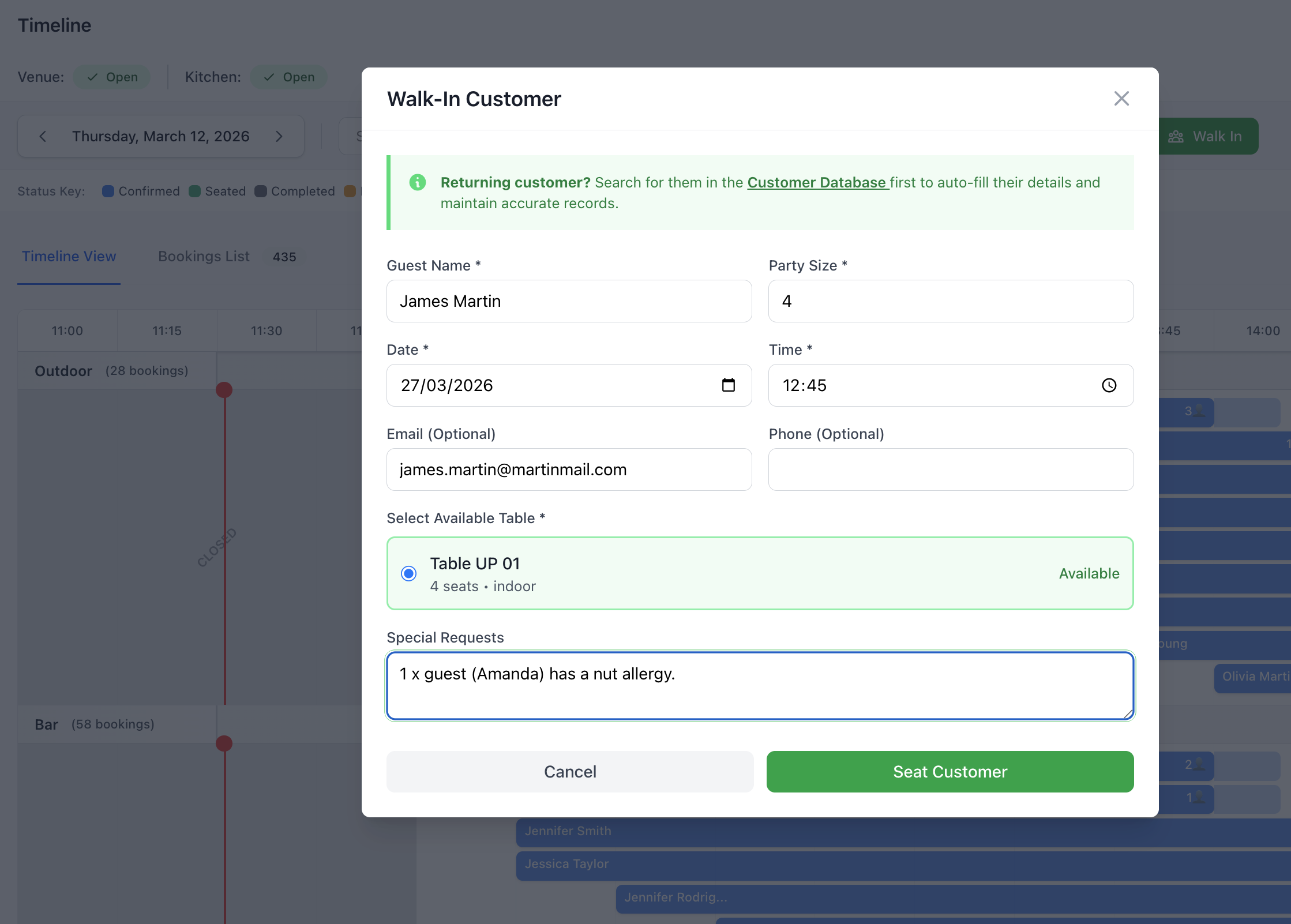
Quick Walk-In Process
Fast Track (Under 30 Seconds)
- Click Walk In button
- Enter party size
- Select available table
- Optionally add name/phone
- Click Seat Guests
- Done!
When to Use Fast Track
- Busy service period
- Quick turnover
- Queue building up
- Simple seating
- No special requests
Detailed Walk-In Process
Step 1: Check Availability
Instant Availability Check
View real-time capacity:
Current Availability - Green indicator
- Tables immediately available
- Can seat right away
- Show to host stand
Limited Availability - Amber indicator
- Few tables available
- May have short wait
- Check specific requirements
No Availability - Red indicator
- Fully booked
- Estimated wait time shown
- Waitlist option
- Alternative suggestions
Floor Plan View
- See all tables
- Color-coded status
- Tap to select
- Real-time updates
Step 2: Party Information
Basic Details
Minimum information:
- Party Size (required)
- Name (optional but recommended)
- Phone (optional but recommended)
- Table Selection (auto or manual)
Why Capture Details?
- Future marketing
- Customer recognition
- Service recovery
- Analytics
- Build database
Guest Reaction
- Makes it personal
- Shows professionalism
- Future benefits
- Usually happy to provide
Step 3: Seating Options
Automatic Table Assignment
Let system choose:
- Enter party size
- System suggests table
- Best fit for group
- Consider location
- One-click seat
Manual Table Selection
Choose specific table:
- View floor plan
- See available tables (green)
- Tap preferred table
- Check suitability
- Confirm selection
Table Combining
For larger groups:
- Select first table
- Click Combine Tables
- Select adjacent table
- Lock combination
- Seat party
Step 4: Customer Preferences
Quick Preferences
Capture important details:
Seating Preferences
- Booth
- Window
- Quiet area
- High-top
- Bar seating
- Outside
Dietary Requirements
- Vegetarian
- Vegan
- Gluten-free
- Allergies
- Other
Special Occasions
- Birthday
- Anniversary
- Celebration
- Business
- Date
Accessibility
- Wheelchair access
- Ground floor
- Close to entrance
- Special needs
Step 5: Wait Time Management
No Tables Available
When fully booked:
Wait Time Estimate
- Automatic calculation
- Based on current bookings
- Average dining time
- Real-time updates
- SMS notification option
Waitlist Options
Add to waitlist:
- Enter customer details
- Party size
- Phone number (for SMS)
- Special requests
- Join waitlist
Customer chooses:
- Wait at venue
- Wait nearby (SMS alert)
- Come back later
- Make future reservation
Alternative Suggestions
- Bar seating available?
- High-top tables?
- Different area?
- Call when ready?
- Book for later?
Step 6: Seating Confirmation
Final Check
Before seating:
- Verify party size
- Confirm table ready
- Check table setup
- Clean and reset
- Menus ready
- Server assigned
Seat Guests
Complete the process:
- Click Seat Guests button
- Walk party to table
- Present menus
- Introduce server
- Timing starts
Automatic Actions
- Table status → Occupied
- Timer started
- Server notified
- Kitchen alerted
- Duration tracking begins
Walk-In Management Features
Quick Party Registration
Express Mode
Minimal information entry:
- Tap party size (1-10+ buttons)
- Optional name field
- Auto-select table
- One tap to seat
- Under 20 seconds
Pre-Set Buttons
- Party of 2
- Party of 4
- Party of 6
- Large party
- Bar seating
- Custom size
Host Stand Mode
Optimized for Busy Service
Simplified interface:
Layout
- Large touch targets
- Essential information only
- Quick actions
- Status at a glance
- Minimal scrolling
Quick Actions
- Seat Walk-In
- Check Availability
- View Waitlist
- Upcoming Reservations
- Floor Plan View
Multiple Walk-Ins
Handling Rush Periods
When several parties arrive:
Queue Management
- Register each party
- Auto-queue creation
- Priority ordering
- Estimated seat time
- Notify as ready
Party List View
- All waiting parties
- Time waiting
- Party size
- Special requests
- Next to seat indicator
VIP Walk-Ins
Recognized Customers
When VIP arrives:
Quick Recognition
- Search past customers
- Recognize phone number
- Flag VIP status
- Load preferences
- Priority seating
VIP Treatment
- Best available table
- Manager greeting
- Preferred server
- Special attention
- Log visit
Integration with Reservations
Mixed Seating
Balance walk-ins and reservations:
Protected Time Slots
System prevents conflicts:
- Reservation coming up
- Table held
- Warning shown
- Alternative offered
- Time-based checks
Buffer Management
- Turnover time
- Service duration
- Cleaning time
- Set-up time
- Realistic spacing
Smart Suggestions
- Tables available for duration
- Won't conflict with bookings
- Considers upcoming reservations
- Optimizes capacity
- Maximizes covers
Walk-In to Reservation
Converting Walk-Ins
Make future customers:
During Seating
- "Would you like to reserve next time?"
- Capture email/phone
- Send booking link
- Offer booking app
- Loyalty program invite
Before Departure
- Ask about experience
- Suggest return booking
- Special event promotion
- Offer preferred time
- Easy booking QR code
Walk-In Analytics
Tracking Walk-Ins
Important Metrics
Monitor performance:
Volume Metrics
- Walk-ins per service
- Walk-ins per day
- Peak walk-in times
- Seasonal patterns
- Trends over time
Conversion Metrics
- Walk-ins seated
- Walk-ins turned away
- Waitlist conversion
- Average wait time
- Future booking conversion
Capacity Metrics
- Walk-in capacity used
- Reserved vs walk-in split
- Optimal balance
- Revenue per walk-in
- Table turn times
Reports & Insights
Walk-In Reports
Available reports:
- Daily walk-in summary
- Weekly patterns
- Peak times analysis
- Turn-away analysis
- Capacity optimization
- Revenue impact
Business Intelligence
- Adjust reservation ratio
- Staff level planning
- Capacity management
- Marketing opportunities
- Service optimization
Waitlist Management
Digital Waitlist
Waitlist Features
Manage waiting customers:
Add to Waitlist
- Party details
- Contact information
- Estimated wait time
- Position in queue
- SMS updates
Waitlist Display
- Current wait list
- Position
- Time waiting
- Party size
- Special needs
- Contact options
Notification System
- SMS when ready
- Table preparation time
- Automatic reminders
- No-show handling
- Clear from list
Wait Time Accuracy
Improving Estimates
Better wait predictions:
Factors Considered
- Current table status
- Historical dining times
- Party sizes
- Service type (lunch/dinner)
- Day of week
- Current pace
Dynamic Updates
- Real-time adjustment
- Faster/slower than expected
- Update customers
- Manage expectations
- Accurate timing
Best Practices
Speed & Efficiency
- Have Process Ready - Train all staff
- Quick Information Capture - Essential details only
- Use Floor Plan - Visual table selection
- Know Availability - Constant awareness
- Fast Decision Making - Seat quickly
Customer Experience
- Warm Welcome - Friendly greeting
- Clear Communication - Transparent wait times
- Manage Expectations - Honest availability
- Offer Alternatives - Bar, outdoor, waitlist
- Follow Through - Keep promises
Capacity Management
- Balance Walk-Ins - Don't compromise reservations
- Protect Peak Times - Reservation priority
- Optimize Slower Times - Welcome walk-ins
- Strategic Seating - Consider turnover
- Monitor Flow - Adjust as needed
Data Capture
- Always Get Name - Personal touch
- Request Phone/Email - Future marketing
- Note Preferences - Better service
- Tag Special Occasions - Recognition opportunity
- Build Database - Valuable asset
Troubleshooting
System Shows No Availability
If availability seems incorrect:
- Refresh floor plan
- Check table status
- Verify turnover times
- Review upcoming reservations
- Manual override (if appropriate)
- Contact manager
Walk-In Won't Save
If registration fails:
- Check required fields
- Verify party size
- Confirm table selection
- Check internet connection
- Retry submission
- Contact support
Table Assignment Conflicts
If table shows unavailable:
- Refresh status
- Check recent changes
- View timeline
- Manual reassignment
- Override if appropriate
- System sync issue
Wait Time Estimates Wrong
If estimates inaccurate:
- Review actual dining times
- Adjust default durations
- Update service types
- Check historical data
- Manual override
- Recalibrate system
Quick Reference
Walk-In Workflow
Fast Process:
- Check availability (5 seconds)
- Get party size (5 seconds)
- Select table (5 seconds)
- Capture name (10 seconds)
- Seat guests (5 seconds)
Total: 30 seconds or less
Status Colors
- Green = Available now
- Amber = Limited availability
- Red = Fully booked
- Blue = Reserved (coming soon)
- Purple = Walk-in seated
- Gray = Not in service
Quick Actions
- W = New walk-in
- Space = Quick seat
- F = View floor plan
- L = View waitlist
- Esc = Cancel
Support
Need help with walk-ins?
- Email: [email protected]
- WhatsApp: WhatsApp Support
Related Pages
- New Booking - Create reservations
- Timeline - Visual timeline view
- Floor Plan - Visual table layout
- Bookings List - All bookings
Quick Seating
During busy periods, seat walk-ins first, capture details later. Get customers to their table fast, then return to collect contact information for your database.