Appearance
My Availability
Manage when you're available to work.
Overview
My Availability lets you communicate when you can and cannot work. Set your regular weekly availability, indicate preferred times, and request time off. Help your managers schedule you effectively by keeping your availability up-to-date.
Accessing My Availability
Navigate to My Shifts & Availability > My Availability
Setting Availability
Regular Availability
Define your typical weekly pattern:
Weekly Grid View
- 7-day week display
- Hourly time slots
- Visual selection
- Color-coded status
- Save patterns
Availability Status
Available - Green
- You can work these times
- Schedulable periods
- Preferred for shifts
Unavailable - Red
- Cannot work these times
- Do not schedule
- Hard restrictions
Preferred - Blue
- Ideal work times
- Happy to work
- First choice for scheduling
Maybe - Amber
- Can work if needed
- Not ideal but possible
- Backup availability
Any - No restriction
- Fully flexible
- Schedule as needed
- Maximum flexibility
Setting Up Your Schedule
Method 1: Click and Drag
- Click on time slot
- Drag across times/days
- Release to apply
- Choose status
- Save changes
Method 2: Day Selection
- Select entire day
- Click availability status
- Applied to full day
- Repeat for other days
- Save pattern
Method 3: Time Ranges
- Select day
- Enter start time
- Enter end time
- Choose status
- Add to schedule
Repeating Patterns
Set consistent schedule:
Common Patterns
Weekday Availability
- Monday-Friday: 9 AM - 5 PM
- Weekends: Unavailable
- Regular work pattern
Weekend Availability
- Monday-Friday: Unavailable
- Saturday-Sunday: All day
- Weekend worker
Split Shift
- Morning: 7 AM - 12 PM
- Afternoon: 5 PM - 10 PM
- Gap in middle
Rotating Schedule
- Week 1 pattern
- Week 2 pattern
- Alternating availability
- Regular rotation
Student Schedule
- Class times: Unavailable
- Evenings: Available
- Weekends: Preferred
- School year pattern
Temporary Changes
One-Time Adjustments
Override regular pattern:
Specific Date Changes
- Click on specific date
- Adjust availability
- Different from usual
- One-day override
- Save changes
Date Range Changes
- Select start date
- Select end date
- Set availability
- Temporary override
- Returns to normal after
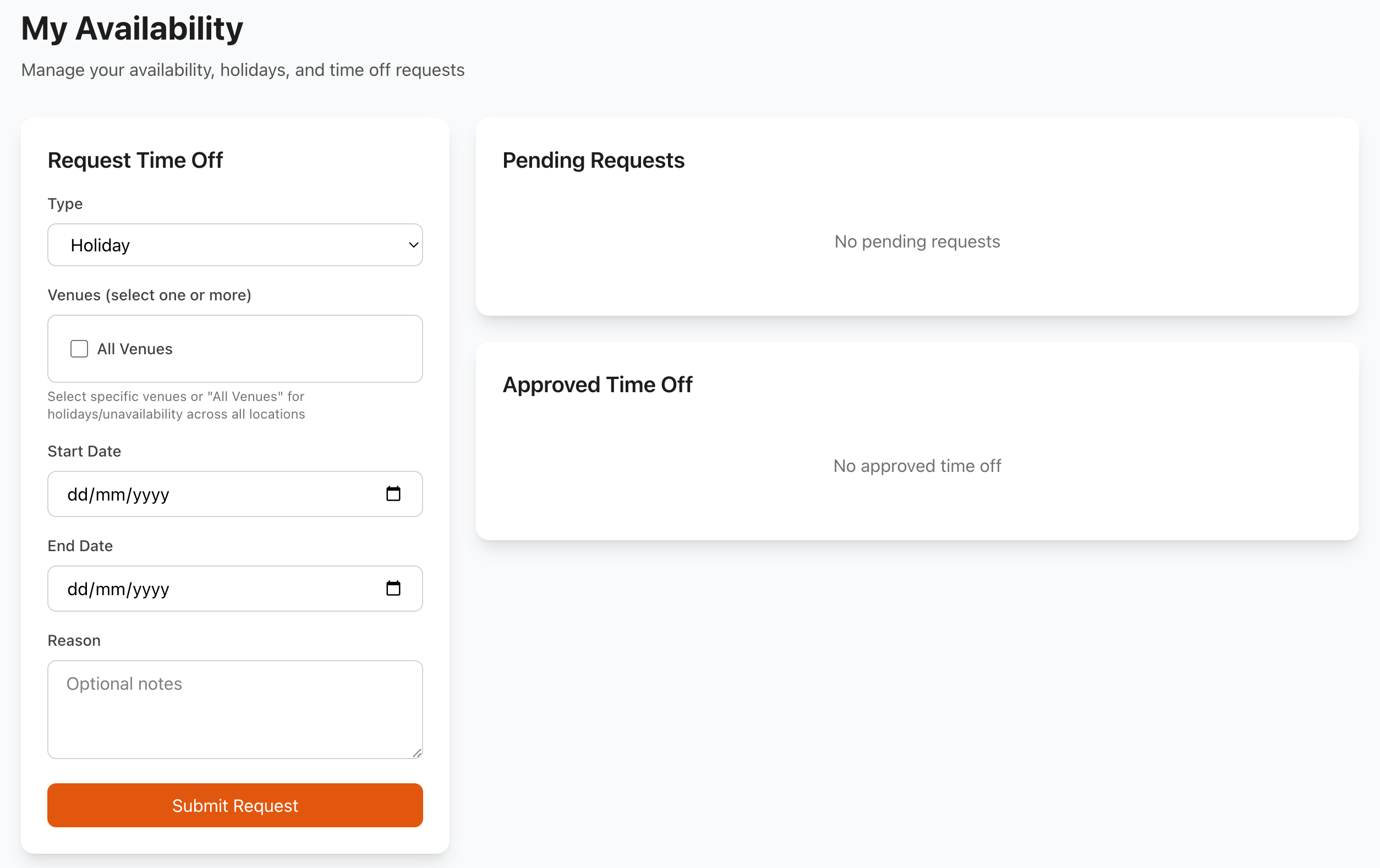
Time-Off Requests
Request days off:
Creating Request
- Go to Request Time Off
- Select dates
- Choose type:
- Vacation/Annual leave
- Personal day
- Medical appointment
- Family commitment
- Study/Exam
- Other reason
- Add notes (optional)
- Submit request
Request Status
- Pending - Awaiting manager approval
- Approved - Time off confirmed
- Denied - Request rejected (with reason)
- Cancelled - You withdrew request
Holiday Periods
Plan vacation time:
Advance Notice
- Major holidays: 4-8 weeks
- Long vacations: 6-12 weeks
- Weekends: 2-4 weeks
- Single days: 1-2 weeks
Peak Periods
- Limit on time off
- First-come basis
- Advanced planning critical
- Blackout dates possible
- Fair rotation
Availability Calendar
Calendar View
Visual availability display:
Monthly Overview
- Color-coded days
- Availability status
- Requested time off
- Scheduled shifts
- Notes/events
Weekly Detail
- Hour-by-hour view
- Daily patterns
- Shift overlays
- Availability gaps
- Optimization suggestions
Managing Conflicts
Scheduling Conflicts
- Shift scheduled when unavailable
- Automatic warning
- Manager notification
- Resolve quickly
- Update availability
Double-Booking
- Multiple commitments
- Personal calendar conflicts
- External obligations
- Communication essential
Preferences
Shift Preferences
Indicate preferences:
Days of Week
- Preferred days
- Avoid certain days
- Flexible days
- Weekend preference
- Equal rotation request
Times of Day
- Morning shifts
- Afternoon shifts
- Evening shifts
- Night shifts
- Opening/closing preference
Shift Duration
- Preferred length
- Minimum hours
- Maximum hours
- Consecutive days
- Break between shifts
Roles
- Primary role
- Willing to do
- Not interested in
- Need training for
- Specialty skills
Working Hours
Set your limits:
Weekly Hours
- Minimum hours desired
- Maximum hours willing
- Target hours ideal
- Overtime acceptance
- Flexibility level
Daily Hours
- Minimum shift length
- Maximum shift length
- Preferred duration
- Break requirements
- Stamina considerations
Consecutive Days
- Maximum days in row
- Required rest days
- Weekend frequency
- Day off preferences
Multiple Venues
Multi-Location Availability
If working multiple venues:
Venue-Specific Availability
- Different for each venue
- Distance considerations
- Travel time required
- Venue preferences
- Willing to travel
Travel Preferences
- Maximum travel distance
- Travel time limits
- Transportation available
- Expense considerations
- Preferred locations
Notifications
Availability Notifications
Stay informed:
Alerts Received
- Schedule conflicts detected
- Shift assigned when unavailable
- Time-off request status
- Manager override notification
- Availability reminder
Response Required
- Confirm availability
- Resolve conflicts
- Update information
- Acknowledge changes
Contract & Employment
Contracted Hours
If contracted:
Minimum Hours
- Guaranteed hours
- Must be available
- Core availability
- Legal minimum
- Contract terms
Maximum Hours
- Legal limits
- Health & safety
- Rest requirements
- Overtime rules
- Compliance
Employment Type
Full-Time
- Regular schedule
- Consistent hours
- Standard availability
- Fixed pattern
Part-Time
- Reduced hours
- Flexible availability
- Variable schedule
- Supplemental income
Casual/Zero-Hours
- Complete flexibility
- No guaranteed hours
- On-demand availability
- Accept/decline shifts
Student Worker
- Limited hours
- Study priority
- Flexible scheduling
- School calendar coordination
Manager Communication
Availability Changes
Communicate changes:
Advance Notice
- Permanent changes: 4 weeks
- Temporary changes: 2 weeks
- Emergency change: ASAP
- Regular updates: Seasonal
Change Process
- Update availability system
- Notify manager
- Explain reason (if major)
- Plan transition
- Confirm receipt
Availability Meetings
Regular reviews:
Topics Discussed
- Current availability
- Schedule satisfaction
- Hour needs
- Preference changes
- Career goals
- Training opportunities
Frequency
- Initial: Setup meeting
- Regular: Quarterly
- As needed: Anytime
- Annual: Performance review
Best Practices
Keeping Availability Current
- Update Immediately - Don't delay changes
- Plan Ahead - Think about upcoming commitments
- Be Realistic - Don't over-commit
- Be Honest - Accurate information helps everyone
- Check Regularly - Review monthly
Maximizing Your Shifts
- Wide Availability - More options for scheduling
- Flexibility - Adjust when possible
- Reliability - Honor your availability
- Communication - Explain constraints
- Positive Attitude - Willing to help
Professional Approach
- Respect Deadlines - Submit time-off early
- Understand Business - Peak times need coverage
- Team Player - Consider others' needs
- Reasonable Requests - Balance personal and work
- Advance Planning - Look ahead
Work-Life Balance
- Set Boundaries - Protect personal time
- Self-Care - Rest and recovery time
- Plan Ahead - Schedule important events
- Communicate Needs - Be open with managers
- Stay Flexible - Help in emergencies
Common Scenarios
Going on Vacation
Steps:
- Check time-off entitlement
- Request time off (4-8 weeks ahead)
- Update availability
- Await approval
- Confirm before booking
- Enjoy your vacation!
Starting School/University
Steps:
- Get class schedule
- Update regular availability
- Mark class times unavailable
- Set exam periods
- Communicate plans
- Consider study time needs
Taking Another Job
Steps:
- Review employment contract
- Update availability
- Be transparent with manager
- Ensure no conflicts
- Honor commitments
- Maintain professionalism
Medical Appointment
Steps:
- Request specific time off
- Provide notice (1-2 weeks ideal)
- Submit documentation (if required)
- Confirm approval
- Reminder to colleagues
- Attend appointment
Family Emergency
Steps:
- Communicate immediately
- Explain situation
- Request necessary time
- Keep manager updated
- Provide return estimate
- Documentation if needed
Mobile App
Mobile Availability
Manage on-the-go:
Features
- View availability
- Make quick changes
- Request time off
- Respond to shift offers
- Set preferences
- Notifications
Quick Actions
- Mark day unavailable
- Accept shift offer
- Decline shift
- Request swap
- Update status
Reporting
Your Availability Report
View your patterns:
Metrics Shown
- Total available hours/week
- Unavailable periods
- Pending requests
- Time off taken
- Time off remaining
- Scheduled vs available ratio
Analysis
- Availability trends
- Scheduling efficiency
- Hours worked vs offered
- Peak availability times
- Common unavailable periods
Privacy & Rights
Your Rights
Employment Rights
- Reasonable scheduling
- Rest periods required
- Maximum hours limits
- Notice of schedule
- Time-off entitlements
Data Privacy
- Availability data secure
- Access controlled
- Used for scheduling only
- Not shared externally
- GDPR compliant
Unreasonable Requests
You can decline:
- Excessive hours
- Insufficient rest
- Unsafe conditions
- Discrimination
- Harassment via scheduling
- Retaliation through shifts
Contact HR or management if concerns.
Troubleshooting
Changes Not Saving
If updates don't work:
- Check internet connection
- Refresh page
- Try different browser
- Clear cache
- Check permissions
- Contact support
Scheduled When Unavailable
If shifts conflict:
- Check your availability settings
- Verify dates correct
- Contact manager immediately
- Request shift change
- Document the conflict
- Resolve quickly
Time-Off Request Issues
Problems with requests:
- Check you have entitlement
- Verify notice period met
- Confirm blackout periods
- Review rejection reason
- Discuss with manager
- Plan alternative dates
App Not Syncing
Sync problems:
- Check internet connection
- Force close and reopen app
- Update to latest version
- Log out and back in
- Reinstall app if needed
- Contact support
Support
Need help with availability?
- Your Manager - First contact
- Email: [email protected]
- WhatsApp: WhatsApp Support
- HR Department - Policy questions
Related Pages
- My Shifts - View your schedule
- Staff - Staff information (managers)
- Manage Rotas - Scheduling tools (managers)
Keep It Current
Update your availability as soon as plans change. Accurate availability means better schedules for everyone!