
Appearance
Multi-Factor Authentication (MFA)
Enhance your account security with Multi-Factor Authentication.
What is MFA?
Multi-Factor Authentication (MFA) adds an extra layer of security to your account by requiring a verification code in addition to your password when signing in.
Benefits of MFA
- Enhanced Security - Protects against unauthorized access
- Account Protection - Secures sensitive business data
- Peace of Mind - Know your account is safe even if your password is compromised
- Compliance - Meets security best practices for business accounts
Setting Up MFA
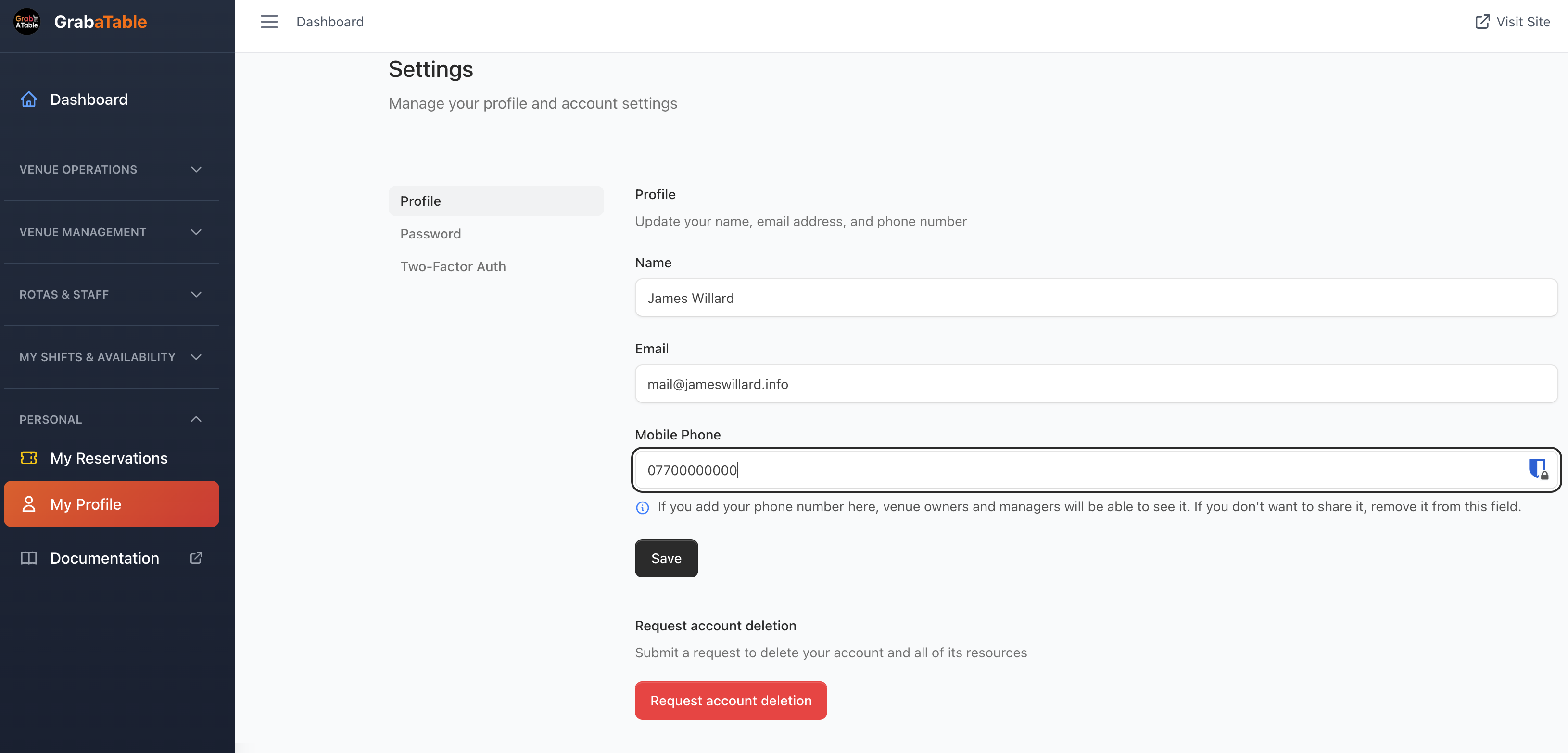
Step 1: Access Account Settings
- Sign in to your account
- Go to Account Settings
- Navigate to the Security section
Step 2: Enable MFA
- Click Enable Multi-Factor Authentication
- Choose your preferred MFA method:
- Authenticator App (Recommended)
- SMS/Text Message
Step 3: Configure Your Method
Using an Authenticator App (Recommended)
- Download an authenticator app:
- Google Authenticator
- Microsoft Authenticator
- Authy
- 1Password
- Scan the QR code displayed on screen
- Enter the 6-digit code from your app
- Save your backup codes in a safe place
Important
Save your backup codes! You'll need them if you lose access to your authenticator device.
Using SMS/Text Message
- Enter your mobile phone number
- Verify the number by entering the code sent to you
- Save your backup codes
Using Email
- Confirm your email address
- A verification code will be sent each time you sign in
- Save your backup codes
Step 4: Test Your Setup
Try signing out and signing back in to ensure MFA is working correctly.
Using MFA at Sign In
Once MFA is enabled:
- Enter your email and password as usual
- You'll be prompted for your verification code
- Open your authenticator app (or check SMS/email)
- Enter the 6-digit code
- Click Verify to continue
TIP
Check "Trust this device" to skip MFA verification for 30 days on trusted devices.
Managing MFA
Backup Codes
Backup codes are single-use codes that let you sign in if you can't access your MFA device.
- Store them securely (password manager, printed copy in safe)
- Each code can only be used once
- Generate new codes if you've used all of yours
Changing MFA Method
- Go to Account Settings > Security
- Click Change MFA Method
- Verify with your current method
- Set up the new method
Disabling MFA
WARNING
Disabling MFA reduces your account security. Only do this if absolutely necessary.
- Go to Account Settings > Security
- Click Disable MFA
- Verify with your current MFA method
- Confirm you want to disable it
Troubleshooting
Lost Access to MFA Device
If you've lost your phone or authenticator app:
- Use a backup code to sign in
- Go to Account Settings and change your MFA method
- Set up MFA on your new device
Codes Not Working
If your codes aren't working:
- Time Sync Issue - Make sure your device's time is set correctly (use automatic time)
- Wrong App - Ensure you're using the code from the correct account in your authenticator
- Expired Code - Wait for a new code to generate (refreshes every 30 seconds)
- Used Code - Each code can only be used once
No Backup Codes
If you don't have backup codes and can't access your MFA device:
- Contact support: [email protected]
- You'll need to verify your identity
- Support will help restore access to your account
Still Having Issues?
Contact our support team:
- Email: [email protected]
- WhatsApp: WhatsApp Support
Best Practices
- Use an Authenticator App - More secure than SMS
- Save Backup Codes - Store them in a secure location
- Keep Contact Info Updated - Ensure recovery options are current
- Don't Share Codes - Never give your MFA codes to anyone
- Regular Reviews - Check your security settings periodically
Next Steps
- Set up account recovery options
- Review your account settings
- Learn about forgot password procedures