Appearance
Global Settings
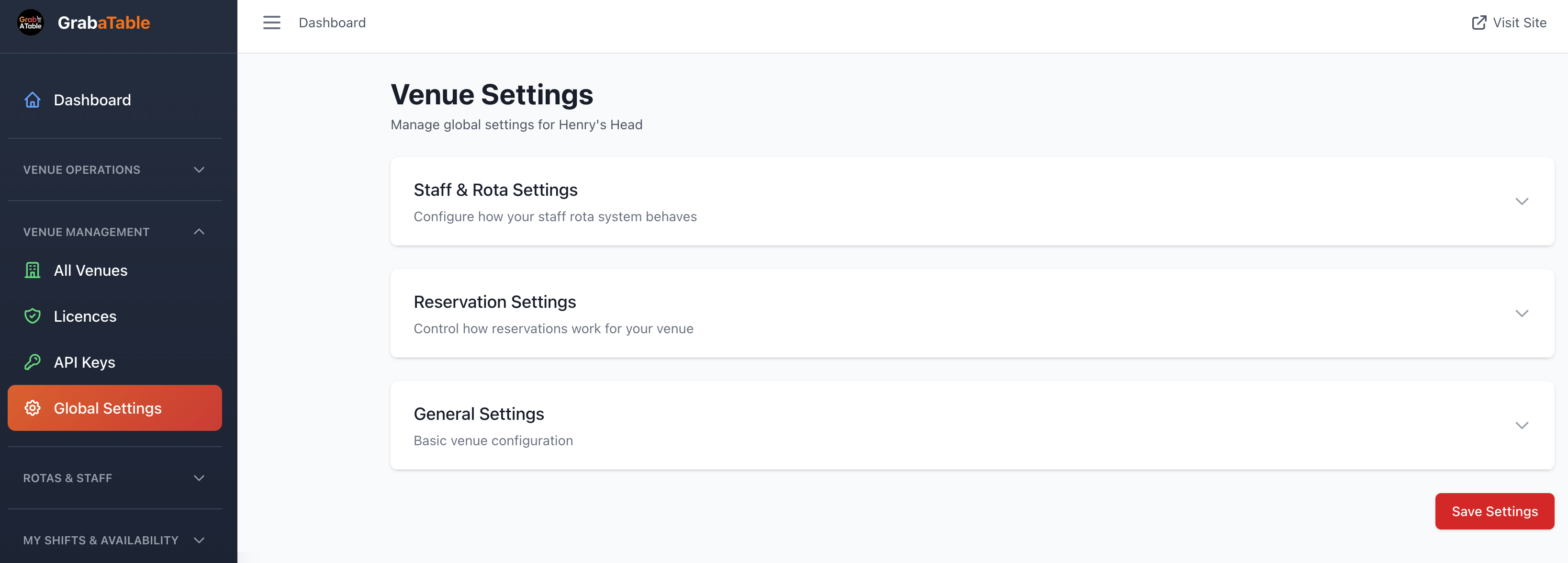
Configure settings that apply across all your venues.
Overview
Global Settings allow you to define preferences, policies, and configurations that apply to your entire account and all venues. These settings ensure consistency across your portfolio and simplify management.
Account Settings
Business Information
Configure your business details:
- Business Name - Legal entity name
- Trading Name - Public-facing brand name
- Company Registration - Business registration number
- VAT Number - For VAT-registered businesses
- Business Type - Restaurant, pub, cafe, etc.
- Contact Details - Primary business contact information
Primary Contact
Set the main contact for your account:
- Name and title
- Email address
- Phone number
- Preferred contact method
- Time zone
Billing Contact
Separate billing contact (if different from primary):
- Accounts/finance team contact
- Billing email address
- Invoice delivery preferences
User Management
Account Users
Manage who has access to your account:
- Admin Users - Full account access
- Manager Users - Venue management access
- Staff Users - Limited operational access
- Read-Only Users - View-only access
Adding Users
To add a new user:
- Go to Global Settings > Users
- Click Add User
- Enter email address and name
- Select role and permissions
- Assign to specific venues
- Send invitation
User Roles
Account Owner
- Full access to everything
- Billing and subscription management
- Can add/remove users
- Cannot be removed
Administrator
- Manage all venues
- User management
- Access to settings
- Cannot modify billing
Manager
- Manage assigned venues
- View reports and analytics
- Update bookings and tables
- Limited settings access
Staff
- View reservations
- Manage bookings for assigned venue
- Update customer information
- No settings access
Read-Only
- View-only access
- Reports and analytics
- Cannot modify anything
Permission Levels
Fine-tune access for each user:
- Create/edit/delete reservations
- Manage venue details
- Access financial data
- View customer information
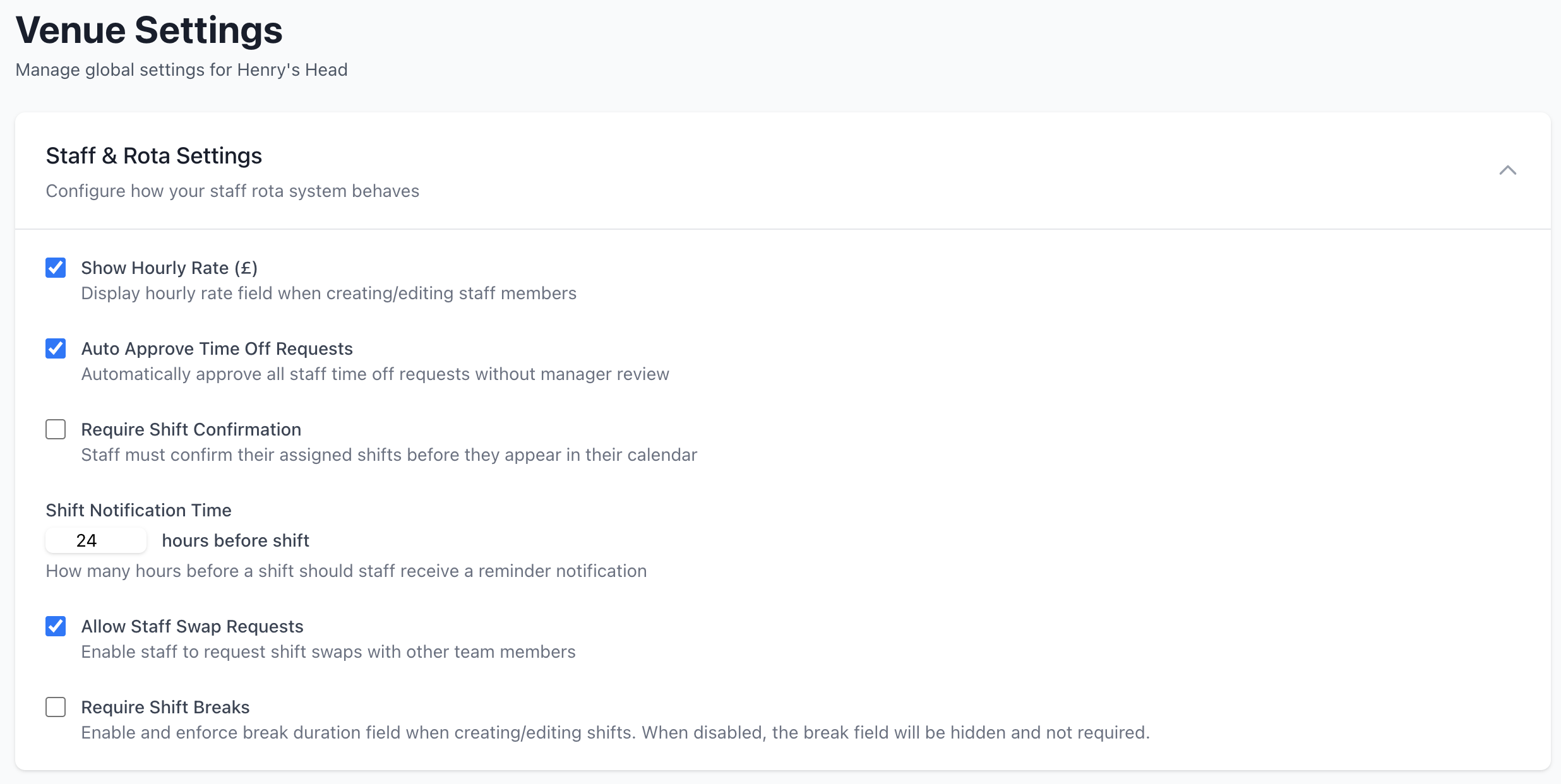
- Modify staff rotas
- Generate reports
- API key management
Notification Settings
Email Notifications
Configure email notifications for:
- New reservations
- Booking modifications
- Cancellations
- Payment confirmations
- Staff schedule changes
- System updates
- Marketing communications
SMS Notifications
Enable SMS alerts for:
- Urgent booking changes
- Last-minute cancellations
- High-priority issues
- Capacity warnings
Notification Recipients
Set who receives different types of notifications:
- All users
- Specific roles
- Venue-specific staff
- Custom distribution lists
Default Policies
Cancellation Policy
Set default cancellation rules:
- Free Cancellation Period - Hours before reservation
- Cancellation Fee - Percentage or fixed amount
- No-Show Fee - Charge for missed reservations
- Grace Period - Minutes after reservation time
TIP
Individual venues can override global policies if needed.
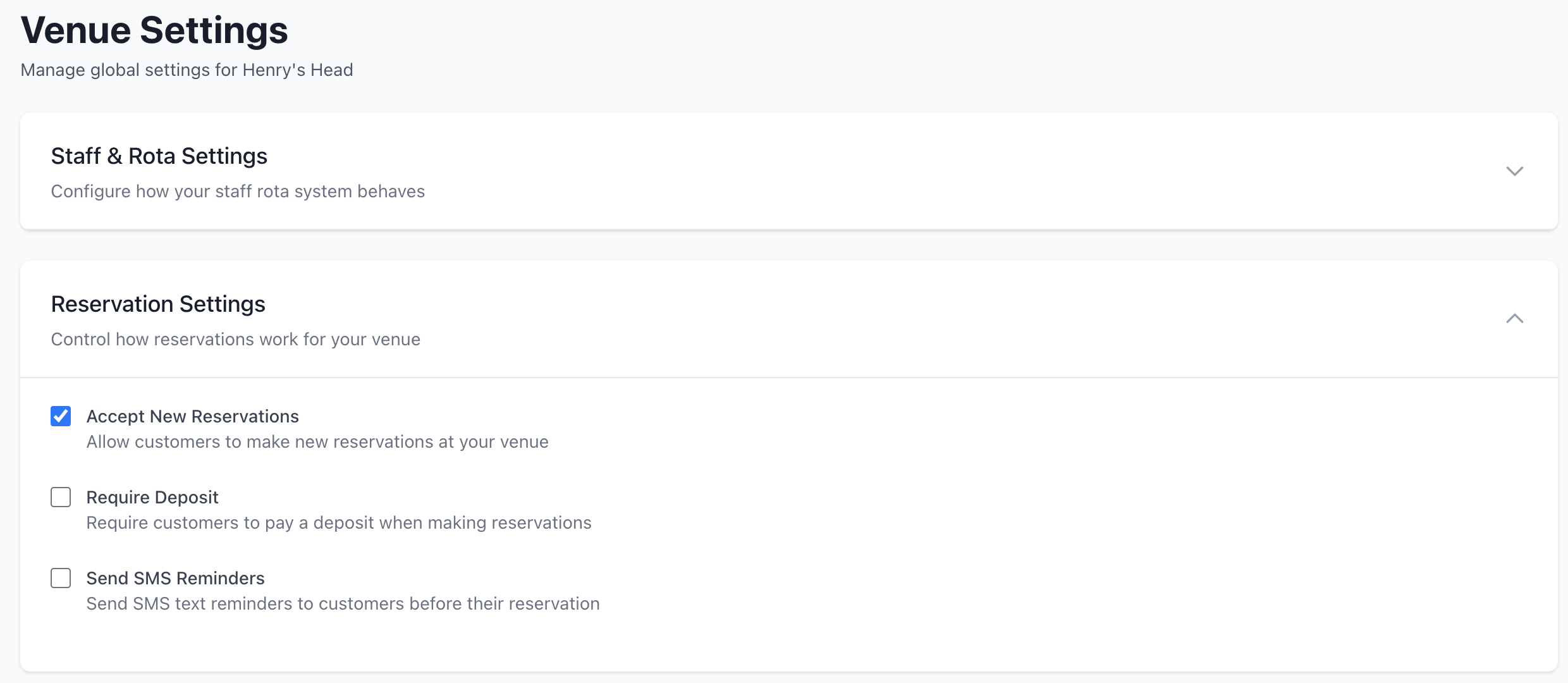
Booking Rules
Default booking parameters:
- Minimum Party Size - Smallest group accepted
- Maximum Party Size - Largest group accepted
- Booking Window - How far in advance customers can book
- Minimum Notice - Minimum hours before reservation
- Default Duration - Standard reservation length
- Buffer Time - Minutes between reservations
Deposit Requirements
Configure deposit settings:
- Deposit Amount - Percentage or fixed amount
- When Required - Party size threshold
- Refund Policy - When deposits are returned
- Payment Methods - Accepted deposit payment types
Communication Templates
Email Templates
Customize email templates for:
- Booking Confirmation - Sent when reservation created
- Booking Reminder - Sent before reservation
- Booking Modification - Sent when details change
- Cancellation Confirmation - Sent when booking cancelled
- Review Request - Sent after dining experience
- Special Offers - Marketing communications
Template Variables
Use these variables in templates:
{customer_name}- Customer's name{venue_name}- Name of venue{booking_date}- Reservation date{booking_time}- Reservation time{party_size}- Number of guests{booking_reference}- Confirmation number{venue_address}- Venue location{venue_phone}- Venue contact number
Branding
Customize email appearance:
- Logo upload
- Brand colors
- Font selection
- Header/footer content
- Social media links
Integration Settings
Payment Processing
Configure payment integrations:
- Payment Provider - Stripe, PayPal, etc.
- Merchant Account - Your account details
- Accepted Payment Methods - Cards, digital wallets
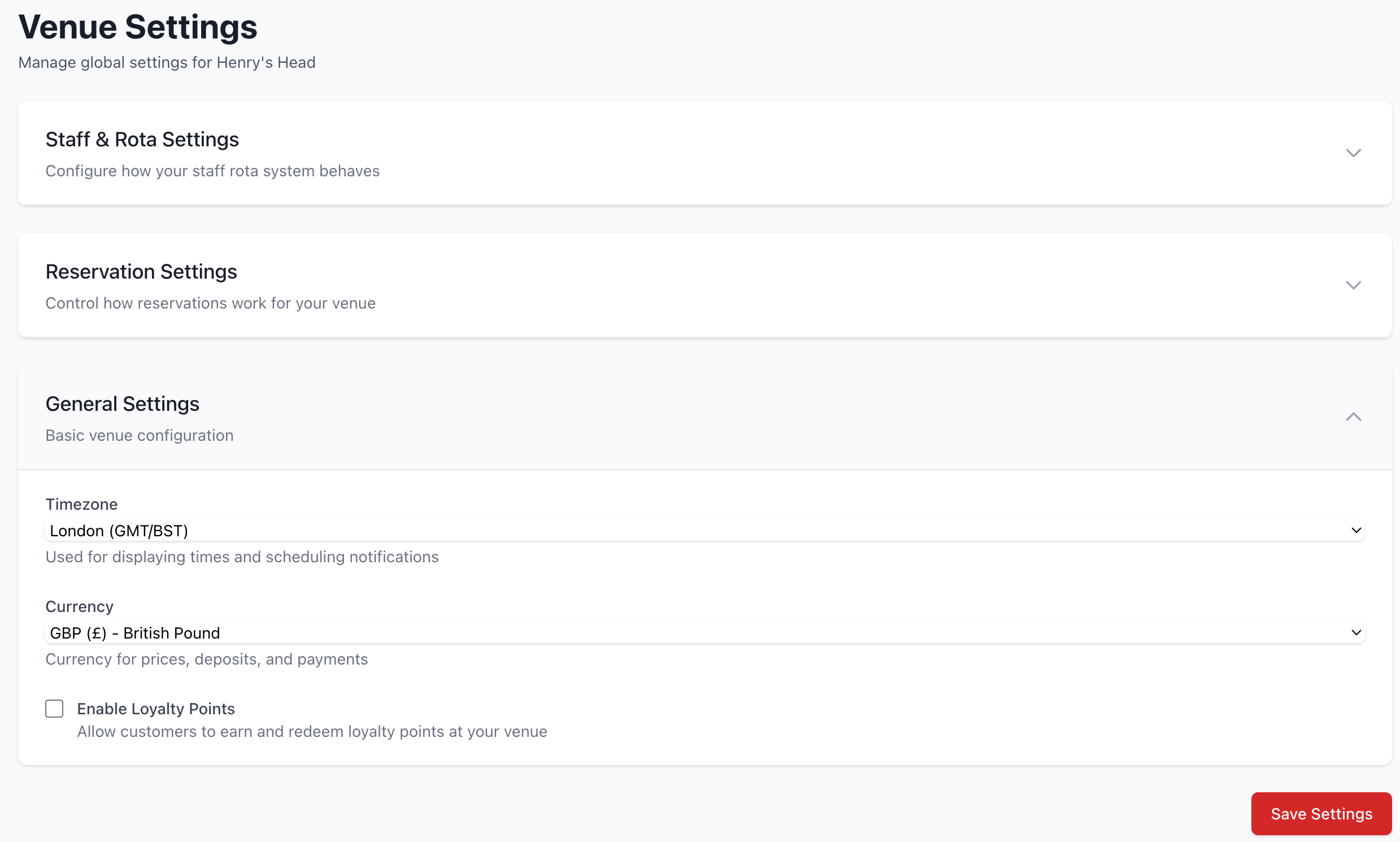
- Currency - Default currency for transactions
- Tax Settings - VAT/tax calculations
Third-Party Integrations
Connect external services:
- POS Systems - Point of Sale integration
- Accounting Software - Xero, QuickBooks, etc.
- Marketing Tools - Mailchimp, HubSpot, etc.
- Review Platforms - TripAdvisor, Google, etc.
- Analytics - Google Analytics, custom tracking
Social Media
Link your social media profiles:
- Twitter/X
- TikTok
Security Settings
Authentication
Configure account security:
- Password Requirements - Minimum complexity
- MFA Policy - Require multi-factor authentication
- Session Timeout - Auto-logout after inactivity
- IP Whitelisting - Restrict access by IP address
Data Protection
Privacy and data settings:
- Data Retention - How long to keep customer data
- GDPR Compliance - EU data protection settings
- Customer Data Access - Who can view customer details
- Data Export - Customer data download options
- Right to Erasure - Customer data deletion requests
Audit Log
Track account activity:
- User logins
- Settings changes
- Data exports
- User additions/removals
- API key creation
Reporting Defaults
Default Report Settings
Configure standard reports:
- Date Range - Default period for reports
- Comparison Period - Previous period comparison
- Metrics Display - Which metrics to show
- Chart Types - Preferred visualizations
- Export Format - PDF, Excel, CSV
Scheduled Reports
Set up automatic reports:
- Frequency - Daily, weekly, monthly
- Recipients - Who receives reports
- Content - Which metrics to include
- Delivery Time - When reports are sent
Regional Settings
Localization
Configure regional preferences:
- Time Zone - Default time zone
- Date Format - DD/MM/YYYY or MM/DD/YYYY
- Time Format - 12-hour or 24-hour
- Currency - Default currency symbol
- Language - Interface language
- Number Format - Decimal separator style
Operating Hours
Default operating hours template:
- Standard opening/closing times
- Split shifts configuration
- Holiday closures
- Seasonal hours
Data Management
Import/Export
Bulk data operations:
- Import Customers - Upload customer database
- Import Bookings - Migrate existing reservations
- Export Data - Download all data
- Backup Schedule - Automatic data backups
Data Cleanup
Automated data maintenance:
- Archive Old Bookings - Auto-archive past reservations
- Remove Duplicates - Detect duplicate customers
- Inactive Customers - Flag customers without recent bookings
- Data Validation - Check for incomplete records
Support Preferences
Support Contact
Configure support options:
- Primary Support Contact - Who receives support tickets
- Support Email - Dedicated support address
- Support Hours - When your team is available
- Escalation Path - Who to contact for urgent issues
Help Resources
Enable/disable help features:
- In-app tooltips
- Guided tours for new users
- Help documentation links
- Chat support widget
- Support ticket system
Best Practices
Regular Reviews
Review global settings:
- Monthly - User access and permissions
- Quarterly - Templates and communications
- Annually - Policies and terms
Documentation
Document your settings:
- Keep a record of changes
- Note reasons for specific configurations
- Share with relevant team members
- Include in staff training materials
Testing Changes
Before applying global changes:
- Test with a single venue first
- Review impact on existing bookings
- Communicate changes to staff
- Monitor for issues after deployment
Support
Need help with global settings?
- Email: [email protected]
- Support: [email protected]
- WhatsApp: WhatsApp Support
Related Pages
- All Venues - Manage individual venues
- Licences - Subscription management
- API Keys - Integration settings
Efficiency
Well-configured global settings save time and ensure consistency across all your venues.