
Appearance
Timeline
View and manage reservations in a visual timeline format.
Overview
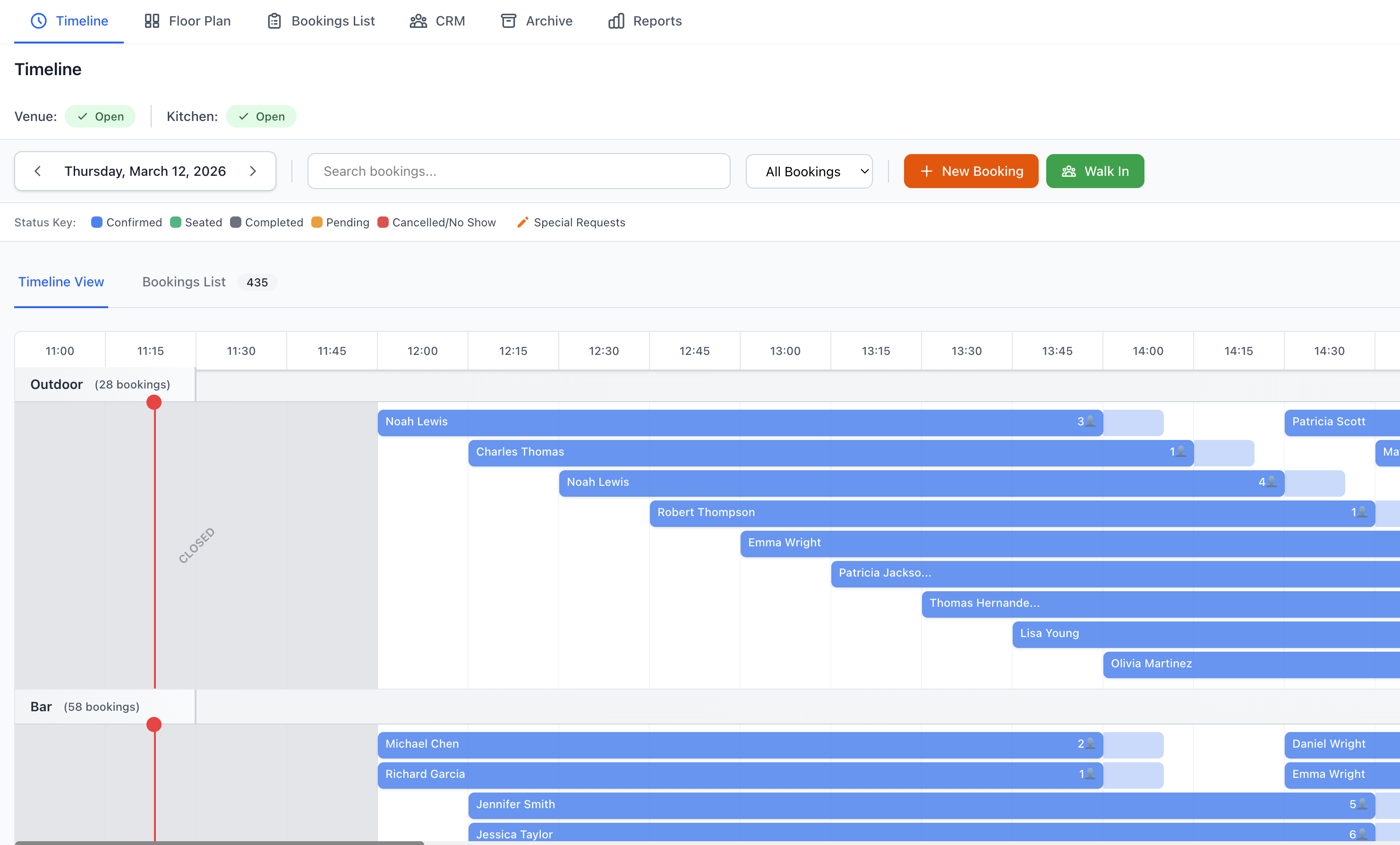
The Timeline view provides a real-time, visual representation of all bookings across your venue. See table occupancy, booking flow, and gaps at a glance. Perfect for managing service flow and optimizing table turnover.
Accessing Timeline
Navigate to Venue Operations > Timeline
Timeline Display
Visual Layout
The timeline shows:
Time Axis
- Horizontal timeline (time of day)
- Service periods highlighted
- Current time indicator
- Adjustable time scale
- Zoom in/out capability
Table Rows
- Each table as a row
- Color-coded by area
- Table capacity shown
- Current status
- Booking blocks
Booking Blocks
- Colored rectangles
- Start and end times
- Guest name
- Party size
- Booking status
- Click for details
Time Range Options
View Modes
Today View (Default)
- Current day only
- Hour-by-hour detail
- Real-time updates
- Most common view
Date Selector
- Choose specific date
- Navigate forward/backward
- Jump to date
- Week view option
Service Period
- Lunch service only
- Dinner service only
- All-day view
- Custom time range
Zoom Controls
Adjust detail level:
Zoom In
- 15-minute intervals
- Detailed view
- Precise timing
- Fine adjustments
Zoom Out
- 1-hour intervals
- Overview perspective
- Pattern recognition
- Capacity planning
Fit to Window
- Optimal view
- Auto-scale
- Service period fit
- Full day overview
Color Coding
Booking Status Colors
Confirmed - Green
- Booking confirmed
- Expected to arrive
- Standard status
Pending - Orange
- Awaiting confirmation
- Requires attention
- Follow up needed
Seated - Blue
- Guests arrived
- Currently dining
- Active service
Completed - Grey
- Service finished
- Guests departed
- Historical record
Cancelled - Red strikethrough
- Booking cancelled
- No longer expected
- Table now available
No Show - Dark red
- Guests didn't arrive
- Marked as no-show
- Table released
Waitlist - Purple
- Waitlist customer
- Potential booking
- Not confirmed
Special Indicators
VIP Bookings - Gold star
- Important customer
- Special attention
- Premium service
First Time - Blue dot
- New customer
- First visit
- Extra care
Special Occasion - Pink heart
- Birthday/anniversary
- Celebration
- Special treatment
Large Party - Multiple person icon
- 8+ guests
- Significant booking
- Extra coordination
Dietary Requirements - Leaf icon
- Special dietary needs
- Kitchen notification
- Allergen alert
Notes - Comment icon
- Booking has notes
- Click to view
- Important information
Managing Bookings
Creating Bookings
Drag to Create
- Click on table row
- Drag across time
- Release to create
- Enter booking details
- Save booking
Click to Create
- Click time slot
- Booking form opens
- Select table
- Enter details
- Create booking
See New Booking for full details.
Editing Bookings
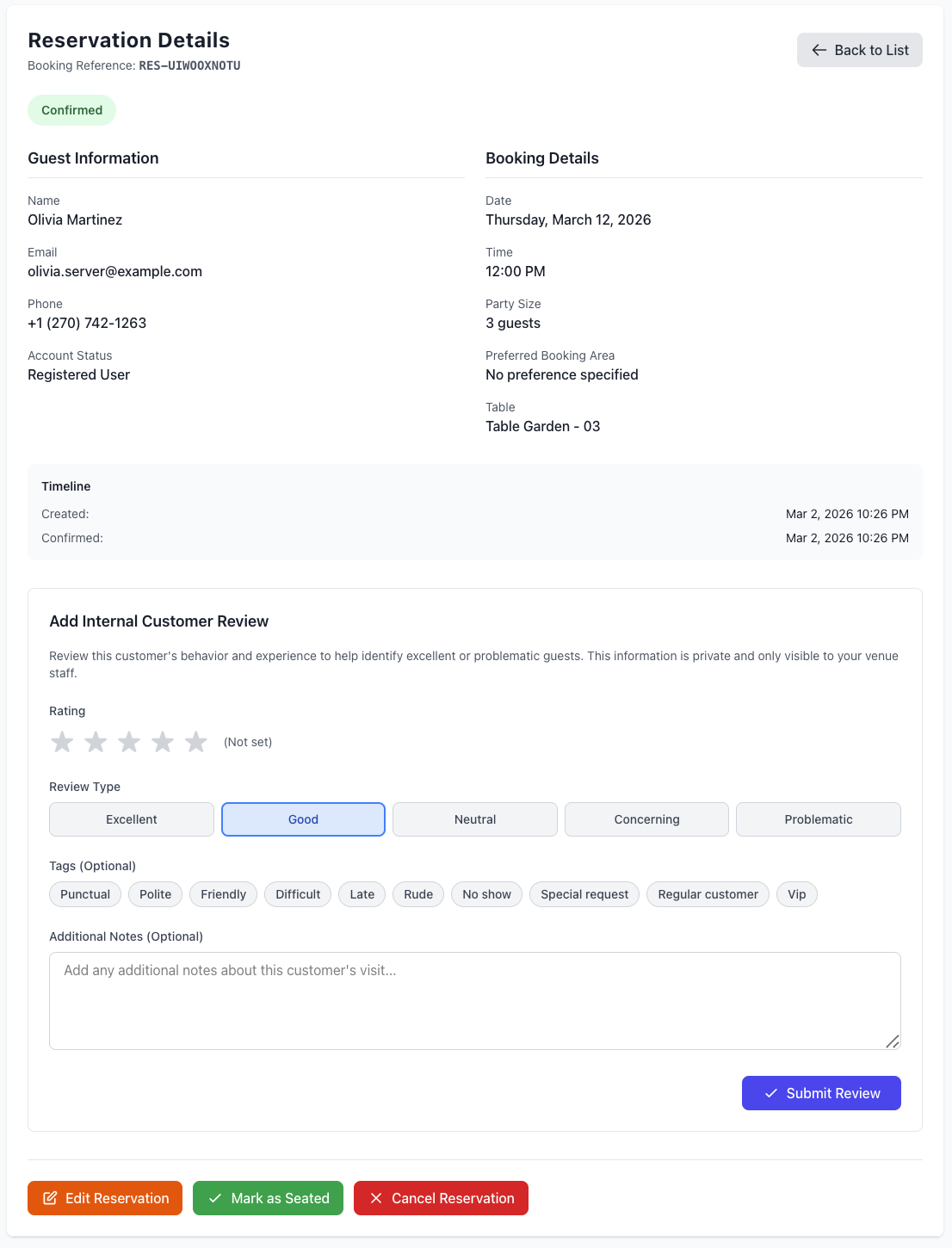
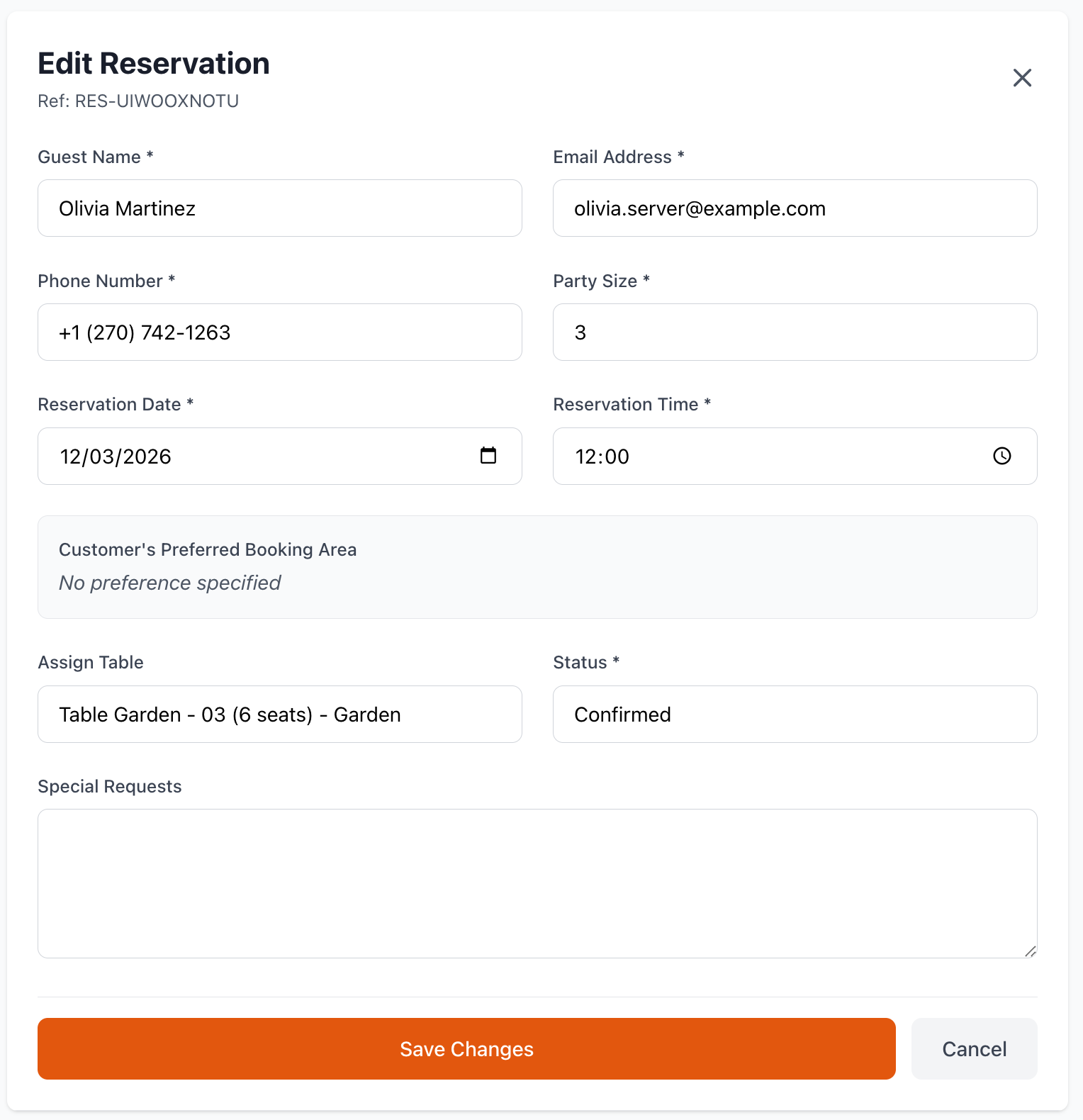
Modify Existing Bookings
- Click on booking block
- Edit any details
- Change time/table
- Update party size
- Save changes
Drag to Adjust
Resize Booking
- Drag edge to change time
- Extend or shorten
- Real-time conflict detection
- Auto-save
Move Booking
- Drag block to different time
- Drag to different table
- Same-day moves
- Cross-day moves (limited)
Swap Tables
- Drag between tables
- Check capacity
- Conflict warnings
- Instant update
Deleting Bookings
Remove bookings:
- Select booking block
- Press Delete key or right-click
- Choose cancel reason
- Notify customer (optional)
- Confirm deletion
Table Management
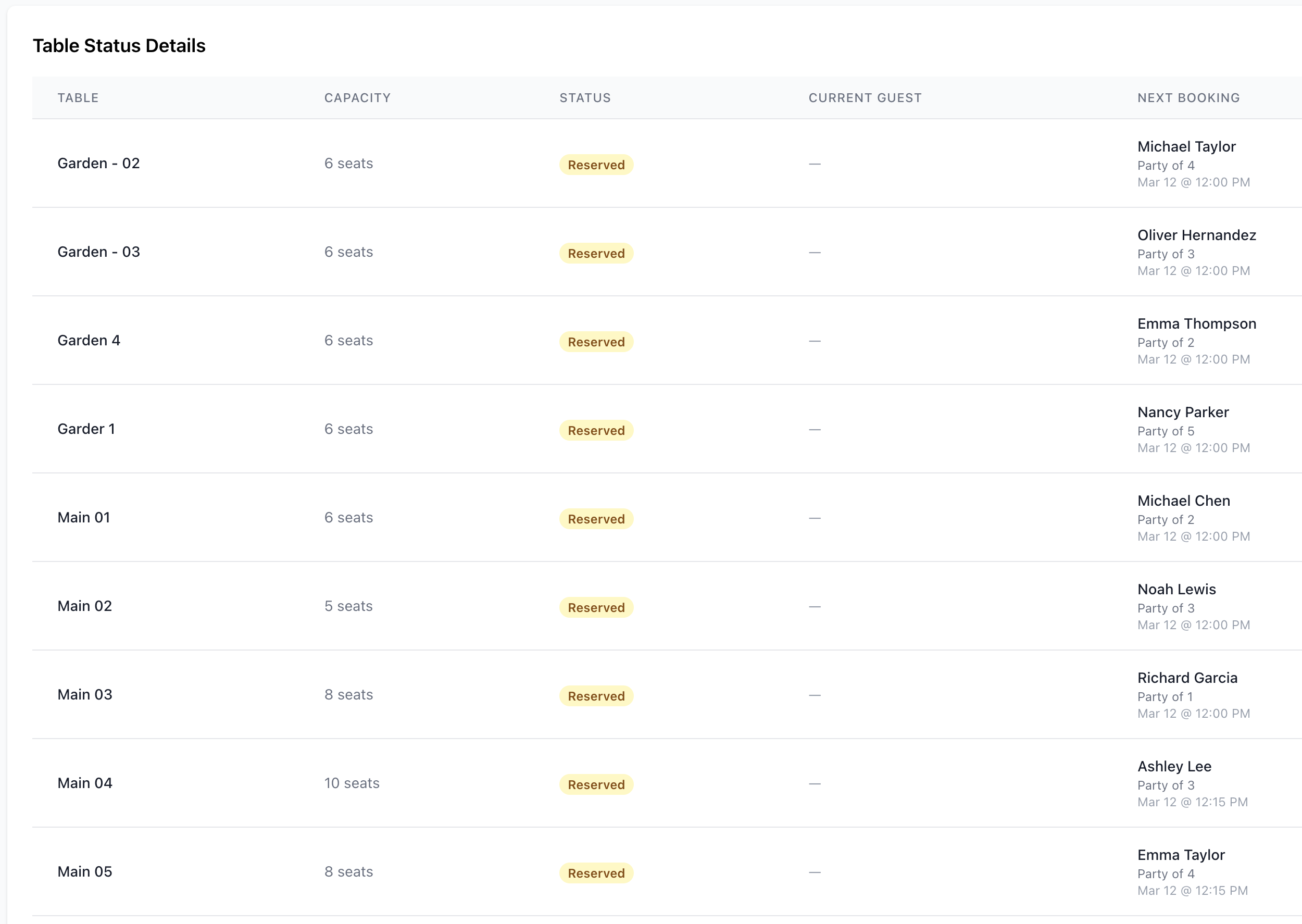
Table Status
Visual indicators:
Available - Green empty
- No bookings
- Ready to book
- Full service time
Partially Booked - Mixed
- Some time slots taken
- Gaps available
- Turnover opportunity
Fully Booked - Solid blocks
- No availability
- Completely scheduled
- Maximum capacity
Blocked - Hatched pattern
- Table unavailable
- Maintenance/reserved
- Out of service
Combining Tables
Join tables for large parties:
- Select multiple tables
- Right-click > Combine Tables
- Create combined booking
- Shown as linked blocks
- Separate when complete
Table Filters
Show/hide tables:
Filter Options
- By area (indoor/outdoor)
- By capacity
- By availability
- By floor/section
- Custom filters
Quick Filters
- Available now
- Available tonight
- Large party tables (8+)
- Window seats
- VIP areas
Availability Checking
Finding Available Tables
Quick Check
- Glance at timeline
- Empty spaces = available
- Color-coded status
- Instant recognition
Smart Search
- Enter desired time
- Specify party size
- System highlights options
- Select best fit
- Create booking
Capacity Overview
Monitor overall capacity:
Metrics Shown
- Total covers booked
- Available capacity
- Occupancy percentage
- Peak periods
- Gap opportunities
Visual Indicators
- Green: Plenty of space
- Amber: Getting busy
- Red: Nearly full
- Flash: Overbooked
Service Flow Management
Turn Times
Optimize table turnover:
Average Turn Time
- Displayed per table type
- Historical averages
- Real-time tracking
- Adjustment suggestions
Custom Turn Times
- Set by table size
- Set by service type
- Set by time of day
- Override for bookings
Visual Warnings
- Back-to-back bookings too close
- Insufficient turnover time
- Recommended gaps
- Optimization tips
Service Periods
Manage multiple services:
Lunch Service
- 12:00 PM - 3:00 PM
- Separated from dinner
- Different turn times
- Distinct patterns
Dinner Service
- 5:30 PM - 10:00 PM
- Peak period management
- Sittings configuration
- Various turn times
All-Day Service
- Continuous bookings
- Flexible timing
- No hard splits
- Rolling availability
Sittings Management
Multiple sittings:
First Sitting
- 6:00 PM arrivals
- Must vacate by 8:00 PM
- Clear communication
- Turnover expectation
Second Sitting
- 8:30 PM arrivals
- Full evening
- No rush
- Close of service
Sitting Indicators
- Color-coded
- Time labels
- Gap visualization
- Transition management
Real-Time Updates
Live Synchronization
Automatic updates:
- Changes appear instantly
- Multi-user collaboration
- Conflict prevention
- No refresh needed
- Cursor positioning
Status Changes
Reflected immediately:
- Guest seated
- Guest departed
- Cancellations
- New bookings
- Table changes
- Time modifications
Notifications
Alert indicators:
- New booking flash
- Cancellation alert
- Late arrival warning
- Approaching arrival time
- Overdue departures
Special Features
Drag and Drop
Intuitive interactions:
Move Bookings
- Drag between times
- Drag between tables
- Visual feedback
- Conflict detection
- Undo capability
Create Bookings
- Drag time range
- Quick creation
- Minimal clicks
- Fast workflow
Right-Click Menu
Context actions:
- Edit booking
- Cancel booking
- Mark as seated
- Mark as completed
- Mark as no-show
- Send reminder
- View customer profile
- Clone booking
Keyboard Shortcuts
Speed up workflow:
- N - New booking
- E - Edit selected
- Delete - Cancel booking
- S - Mark as seated
- Arrow keys - Navigate
- +/- - Zoom in/out
- T - Jump to today
- F - Find booking
Mobile Access
Mobile Timeline
Optimized view:
- Touch-friendly
- Swipe navigation
- Pinch to zoom
- Essential information
- Quick actions
Tablet View
Enhanced for tablets:
- Larger display
- Full features
- Landscape orientation
- Split-screen capable
- Stylus support
Printing & Export
Print Timeline
Generate printouts:
- Click Print
- Select date/time range
- Choose view settings
- Table selection
- Print or PDF
Print Options
- Landscape mode
- Color or B&W
- Include notes
- Booking details level
- Service summary
Export Data
Download information:
Export Formats
- PDF (visual timeline)
- Excel (booking list)
- CSV (raw data)
- Image (PNG/JPG)
Best Practices
Effective Timeline Use
- Monitor Regularly - Check throughout service
- Update Promptly - Mark status changes immediately
- Plan Ahead - Review upcoming bookings
- Optimize Gaps - Fill empty slots
- Communicate - Share with team
Maximizing Capacity
- Manage Turn Times - Appropriate gaps
- Flexible Seating - Creative table combinations
- Waitlist Integration - Fill cancellations
- Walk-In Space - Reserve some capacity
- Overbooking Strategy - Carefully managed
Service Excellence
- Preparation - Review before service
- Table Status - Keep current
- Guest Experience - Don't rush
- Team Communication - Share updates
- Problem Solving - Address issues quickly
Troubleshooting
Timeline Not Loading
If timeline won't display:
- Check internet connection
- Refresh browser
- Clear cache
- Verify date selection
- Check permissions
- Contact support
Bookings Not Showing
Missing bookings:
- Check date selected
- Verify time range
- Review filters applied
- Check table filters
- Confirm booking exists
- Refresh view
Drag and Drop Issues
Problems moving bookings:
- Check permissions
- Verify table available
- Review constraints
- Check time overlap
- Clear browser cache
- Use edit instead
Slow Performance
Timeline lagging:
- Reduce time range shown
- Filter fewer tables
- Close other tabs
- Update browser
- Check internet speed
- Contact support
Support
Need help with Timeline?
- Email: [email protected]
- WhatsApp: WhatsApp Support
Related Pages
- Floor Plan - Visual floor plan view
- Bookings List - List view of bookings
- New Booking - Create new reservation
- Walk In - Handle walk-in customers
Real-Time Management
Timeline view is your command center during service. Keep it open and updated for smooth operations.