
Appearance
Rota Timeline
View and manage staff schedules in a visual timeline format.
Overview
The Rota Timeline provides a visual overview of all staff schedules across your venue(s). See at a glance who's working when, identify coverage gaps, and make quick adjustments to your rota.
Accessing Rota Timeline
Navigate to Rotas & Staff > Rota Timeline
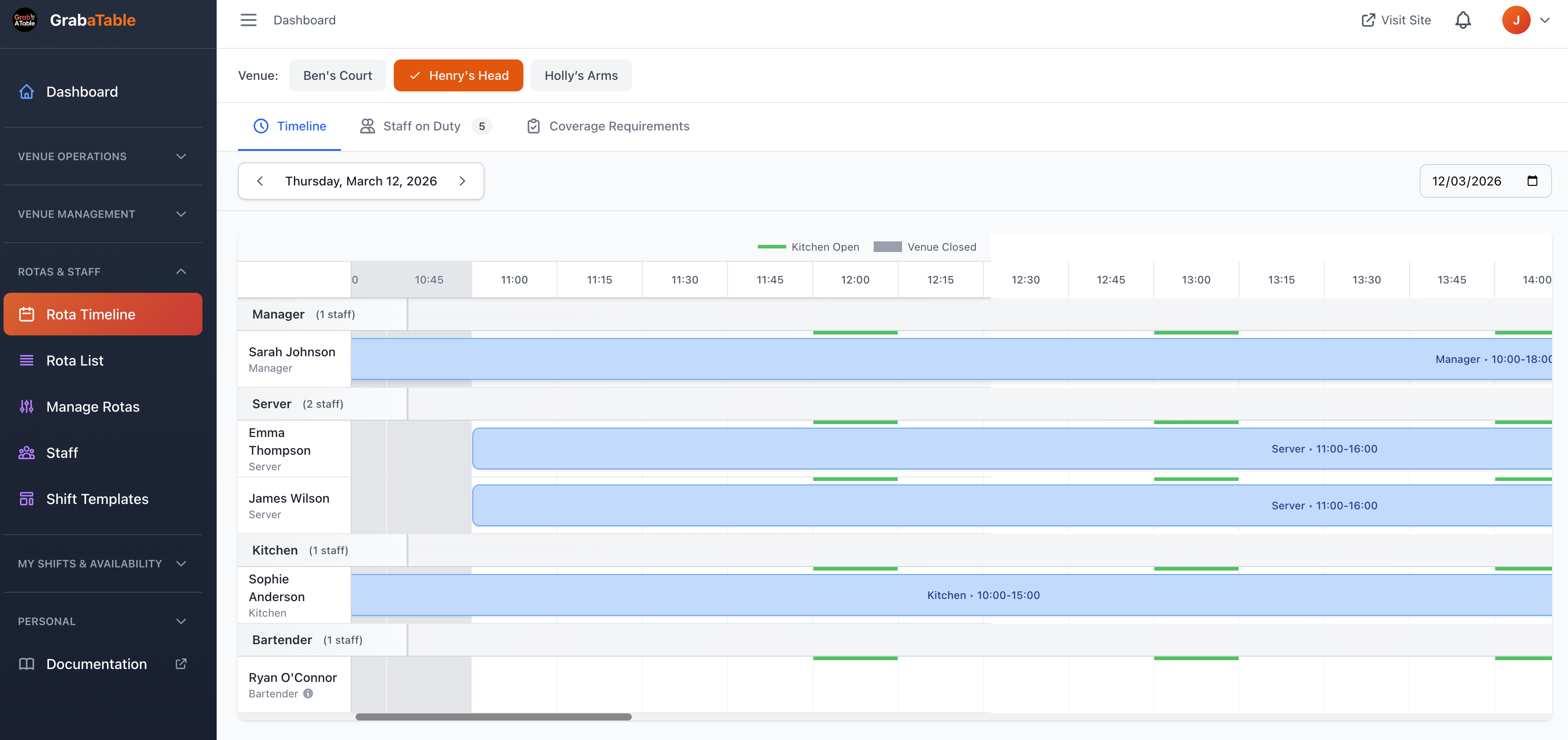
Timeline View
Visual Layout
The timeline displays:
Time Grid
- Hourly columns (or custom intervals)
- Staff rows
- Color-coded shifts
- Visual shift blocks
- Overlap indicators
- Gap warnings
Staff Information
- Staff member photo
- Name and role
- Contact information
- Current status
- Availability indicators
Shift Details
- Start and end times
- Break periods
- Shift role/position
- Venue location
- Total hours
- Overtime indicators
Time Range Navigation
Daily View
- 24-hour overview
- Hourly detail
- Individual service periods
- Detailed scheduling
Weekly View
- 7-day overview (default)
- Pattern recognition
- Weekly planning
- Standard view
Monthly View
- 28-31 day overview
- Long-term planning
- Pattern analysis
- Strategic scheduling
Custom Range
- Select specific dates
- Date range picker
- Event planning
- Seasonal scheduling
Changing Views
Switch between views:
- Click view selector (Day/Week/Month)
- Use navigation arrows (← → )
- Click "Today" to jump to current date
- Use date picker for specific date
- Keyboard shortcuts (if enabled)
Color Coding
Shift Status Colors
Confirmed Shifts - Green
- Staff assigned
- Shift accepted
- Confirmed attendance
Pending Shifts - Orange/Amber
- Awaiting acceptance
- Staff yet to confirm
- Pending approval
Unassigned Shifts - Red
- No staff assigned
- Coverage gap
- Needs attention
Completed Shifts - Grey
- Past shifts
- Clocked out
- Historical data
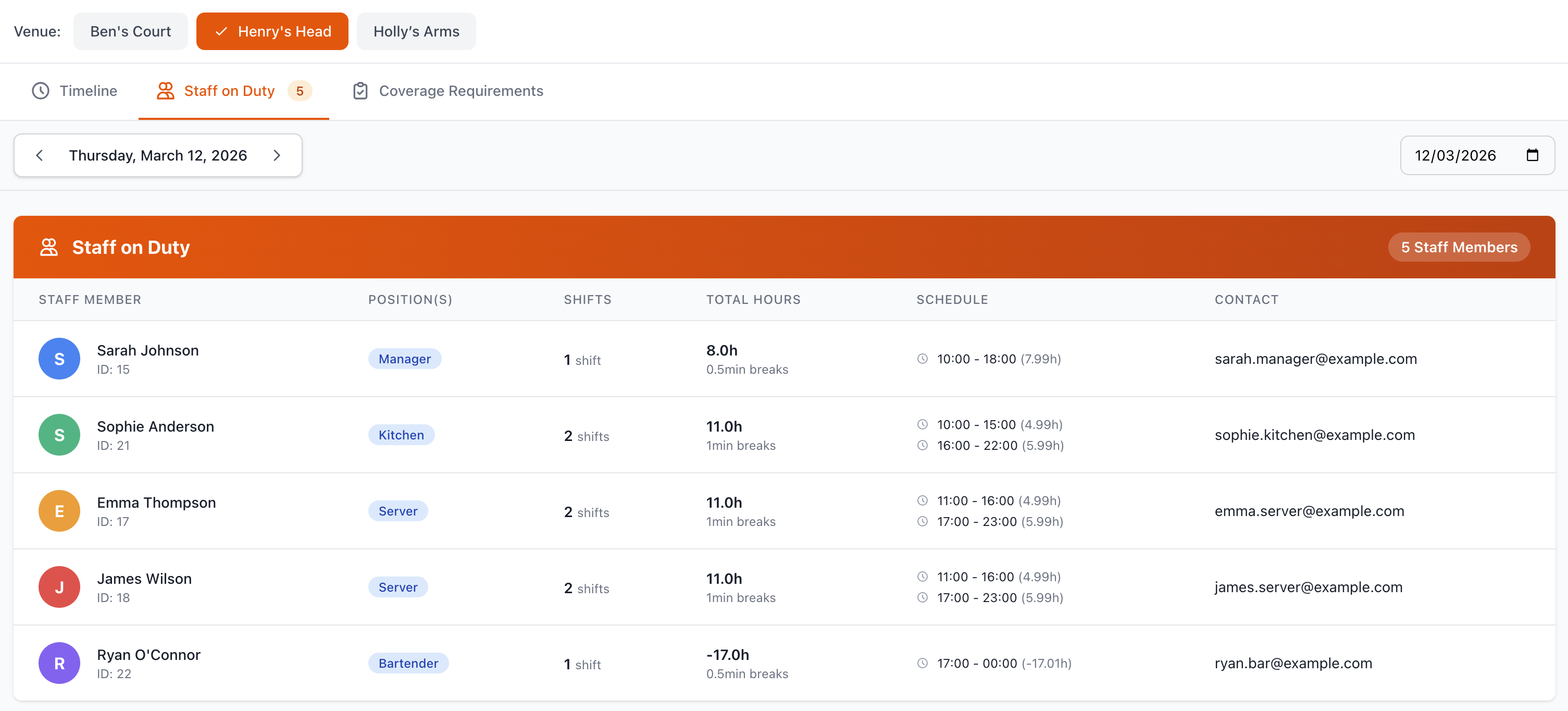
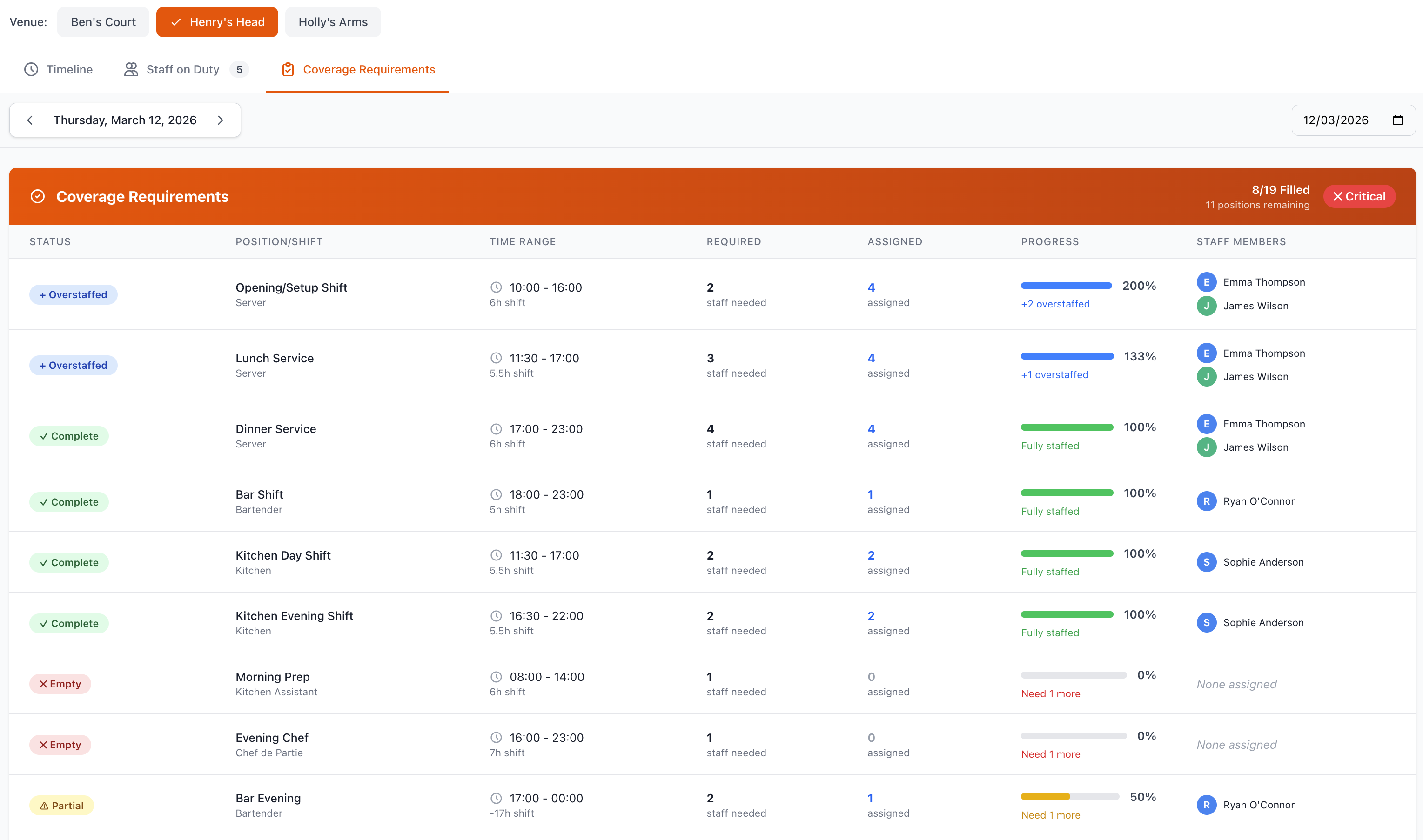
Cancelled Shifts - Strikethrough/Faded
- Cancelled by staff
- Cancelled by manager
- No longer needed
Role-Based Colors
Optionally color-code by role:
- Managers - Purple
- Chefs - Red
- Waiters - Blue
- Bartenders - Green
- Hosts - Orange
- Kitchen Staff - Brown
Configure in Settings > Rota Display > Color Scheme
Creating Shifts on Timeline
Drag to Create
Quick shift creation:
- Click and drag on timeline
- Drag across time period
- Release to create shift
- Assign staff member
- Set shift details
- Save shift
Click to Create
Alternative method:
- Click on specific time slot
- Shift creation modal opens
- Select staff member
- Set start/end times
- Add shift details
- Create shift
Shift Details
When creating shifts:
Basic Information
- Staff member
- Date
- Start time
- End time
- Total hours
Position & Location
- Role/position
- Venue (if multiple)
- Work area
- Specific duties
Break Information
- Break duration
- Break start time
- Paid/unpaid breaks
- Multiple breaks
Additional Details
- Notes/instructions
- Uniform requirements
- Special tasks
- Manager notes
Editing Shifts
Click to Edit
Modify existing shifts:
- Click on shift block
- Edit modal opens
- Modify any details
- Save changes
- Notify staff (optional)
Drag to Adjust
Quick time adjustments:
Resize Shift Duration
- Drag left edge (adjust start time)
- Drag right edge (adjust end time)
- Real-time hour calculation
- Warning if overtime
Move Shift Time
- Drag entire block
- Move to different time
- Same day adjustment
- Collision detection
Reassign Shift
- Drag to different staff row
- Transfer shift ownership
- Automatic notifications
- Conflict warnings
Managing Staff Coverage
Coverage Analysis
Visual indicators for:
Over-Staffed Periods
- Highlighted in blue
- More staff than needed
- Opportunity to reduce costs
- Optimization suggestions
Under-Staffed Periods
- Highlighted in red
- Insufficient coverage
- Urgent attention needed
- Hiring recommendations
Optimal Staffing
- No special highlight
- Adequate coverage
- Efficient scheduling
- Budget compliant
Gap Detection
Automatically identify:
- No manager on duty
- No chef scheduled
- Insufficient floor staff
- Missing key roles
- Compliance issues
Suggested Actions
System recommendations:
- Add staff during busy periods
- Reduce staff during quiet times
- Balance experience levels
- Ensure role coverage
- Optimize labor costs
Shift Swaps & Requests
Staff-Initiated Swaps
When staff request swaps:
Timeline Display
- Original shift highlighted
- Swap request indicator
- Proposed replacement
- Pending approval badge
Manager Actions
- Review swap request
- Check replacement qualifications
- Verify availability
- Approve or deny
- Automatic notifications
Shift Pickup
Available shifts:
- Open shifts displayed
- Staff can claim shifts
- First-come basis or approval
- Automatic assignment
- Notification sent
Conflict Detection
Automatic Warnings
System alerts for:
Scheduling Conflicts
- Double-booked staff
- Overlapping shifts
- Back-to-back shifts (no break)
- Schedule violations
Labor Law Compliance
- Excessive hours
- Insufficient rest periods
- Overtime thresholds
- Minor working hours
- Break requirements
Availability Conflicts
- Staff marked unavailable
- Time-off requests
- Holiday conflicts
- Personal constraints
Qualification Issues
- Unqualified for role
- Missing certifications
- Training requirements
- Experience levels
Filtering & Searching
Filter Options
Narrow timeline display:
By Staff
- Specific individuals
- Multiple selection
- Teams/departments
- Role types
By Role
- Managers only
- Kitchen staff
- Front-of-house
- Specific positions
By Venue
- Single location
- Multiple venues
- All locations
- Venue groups
By Status
- Confirmed shifts
- Pending shifts
- Unassigned shifts
- All statuses
Search Function
Quick find:
- Search by staff name
- Search by shift notes
- Date range search
- Advanced filters
Printing & Exporting
Print Timeline
Professional printouts:
- Click Print or Export
- Select date range
- Choose view (staff list/timeline)
- Select information to include
- Print or PDF
Print Options
- Landscape/portrait
- Color or black & white
- Staff photos included
- Contact information
- Shift notes
- Summary statistics
Export Formats
Download schedule:
- Formatted timeline
- Professional appearance
- Easy distribution
- Print-ready
Excel/CSV
- Data export
- Further analysis
- Payroll integration
- Custom reporting
iCal/Calendar
- Import to calendar apps
- Staff personal calendars
- Automated sync
- Reminders included
Mobile Access
Mobile Timeline View
Optimized for phones:
- Touch-friendly interface
- Pinch to zoom
- Swipe to navigate
- Simplified layout
- Essential information
- Quick actions
Staff Mobile App
Employees can:
- View their schedule
- Request time off
- Swap shifts
- Clock in/out
- Receive notifications
- Update availability
Real-Time Updates
Live Sync
Automatic updates:
- Changes appear immediately
- Multi-user collaboration
- No page refresh needed
- Conflict prevention
- Version control
Notifications
Stay informed:
- Shift assignments
- Schedule changes
- Swap requests
- Coverage alerts
- Overtime warnings
- Compliance issues
Integration
Time Clock Integration
Connect with:
- Clock in/out systems
- Actual vs. scheduled hours
- Attendance tracking
- Late arrivals
- Early departures
- Break tracking
Payroll Systems
Export to:
- Payroll software
- Hour calculations
- Overtime tracking
- Labor cost reporting
- Employee records
Best Practices
Effective Timeline Use
- Check Daily - Review each day's coverage
- Plan Ahead - Schedule 2-4 weeks in advance
- Monitor Gaps - Address coverage issues quickly
- Color Code Consistently - Use standard color scheme
- Keep Updated - Make changes as needed
Optimal Scheduling
- Peak Coverage - More staff during busy periods
- Experienced Mix - Balance new and experienced staff
- Role Distribution - Ensure all roles covered
- Avoid Overtime - Plan within budget
- Staff Preferences - Consider availability when possible
Communication
- Publish Early - Give staff advance notice
- Confirm Changes - Verify staff received updates
- Document Notes - Add context to shifts
- Request Feedback - Listen to staff input
- Be Consistent - Predictable scheduling
Troubleshooting
Timeline Not Loading
If timeline won't display:
- Check internet connection
- Refresh browser
- Clear cache
- Try different browser
- Contact support
Changes Not Saving
If edits aren't being saved:
- Check connection status
- Avoid rapid changes
- Save frequently
- Check permissions
- Review error messages
Staff Not Seeing Updates
If staff don't see schedule changes:
- Verify notifications enabled
- Check email/SMS delivery
- Confirm staff account active
- Ask them to refresh
- Check app version
Conflicts Not Detected
If warnings not appearing:
- Check settings enabled
- Review conflict rules
- Verify staff profiles
- Update labor law settings
- Contact support
Support
Need help with Rota Timeline?
- Email: [email protected]
- WhatsApp: WhatsApp Support
Related Pages
- Rota List - List view of rotas
- Manage Rotas - Rota management tools
- Staff - Staff management
- Shift Templates - Reusable shift templates
Visual Planning
Timeline view is ideal for identifying patterns, gaps, and optimization opportunities at a glance. Use it as your primary scheduling tool.