Appearance
New Booking
Create and manage new reservations.
Overview
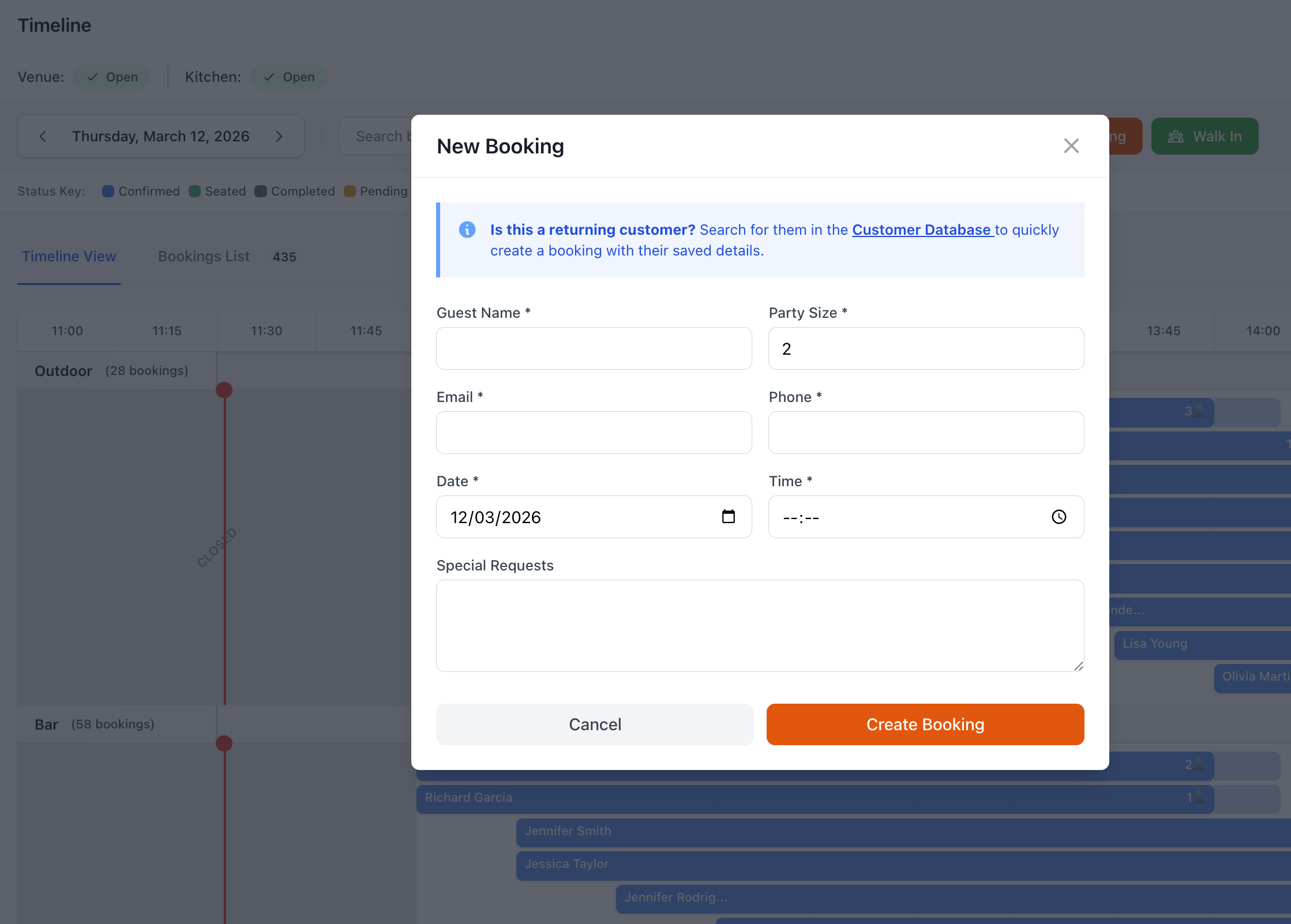
The New Booking page allows you to create reservations for customers. Whether taken by phone, in-person, or for administrative purposes, this is your comprehensive booking creation tool.
Accessing New Booking
Navigate to Venue Operations > New Booking
Or use quick actions:
- Click + New Booking button
- Keyboard shortcut: N
- From Timeline/Floor Plan: Click empty slot
Creating a Booking
Step 1: Booking Details
Date & Time
- Select date (calendar picker)
- Choose time slot
- Select duration (or auto-calculate)
- Pick service period (lunch/dinner)
Party Details
- Number of guests
- Adults vs children (optional)
- High chairs needed
- Special seating requests
Quick Tips
- Use date picker or type date
- Time slots show availability
- Duration auto-set based on party size
- Can override duration manually
Step 2: Customer Information
New Customer
- Enter first name
- Enter last name
- Add email address
- Add phone number
- Profile created automatically
Existing Customer
- Search by name/phone/email
- Select from results
- Details auto-populate
- Verify information
- Update if needed
Customer Quick Search
- Type ahead search
- Phone number lookup
- Email search
- Past customer list
- Recent bookings
Required Fields
- Name (first & last)
- Contact method (email OR phone)
- Party size
- Date & time
Optional Fields
- Second phone number
- Address
- Company name
- Special notes
- Customer tags
Step 3: Table Assignment
Automatic Assignment
- System suggests tables
- Based on party size
- Considers availability
- Best fit algorithm
- Multiple options shown
Manual Assignment
- View floor plan
- Select specific table
- Combine tables
- Override suggestions
- Lock assignment
Assignment Options
- Assigned - Specific table(s)
- Unassigned - Table TBD
- Area Request - Preferred section
- Auto-Assign - Let system decide
Step 4: Special Requests
Dietary Requirements
- Vegetarian
- Vegan
- Gluten-free
- Dairy-free
- Nut allergies
- Other allergies
- Custom requirements
Seating Preferences
- Window seat
- Quiet area
- High-top table
- Booth
- Bar seating
- Outside/patio
- Specific area
Special Occasions
- Birthday
- Anniversary
- Engagement
- Business dinner
- Date night
- Celebration
- Custom occasion
Accessibility Needs
- Wheelchair accessible
- Ground floor only
- Close to entrance
- Wide spacing
- Special assistance
- Service animal
Step 5: Additional Information
Booking Notes
- Internal notes (staff only)
- Kitchen notes (chef sees)
- Customer notes (visible to guest)
- Historical context
- VIP instructions
Tags
- VIP
- Regular customer
- First time
- Corporate
- Influencer
- Custom tags
Source Tracking
- Phone booking
- Walk-in
- Email request
- Partner referral
- Social media
- Website
- Custom source
Step 6: Payment & Deposits
Deposit Required
- Automatic calculation
- Based on party size
- Based on service
- Special event premium
- Custom amount
Payment Methods
- Credit card
- Debit card
- Online payment
- Pay on arrival
- Invoice
- Prepaid
Payment Processing
- Enter card details
- Authorize deposit
- Confirmation sent
- Receipt generated
- Balance on arrival
Refund Policy
- Display policy
- Cancellation terms
- Refund timeline
- Processing fees
- Customer acceptance
Step 7: Confirmation
Review Booking
- Verify all details
- Check availability
- Confirm table
- Review notes
- Validate payment
Confirmation Options
- Save Draft - Complete later
- Create Booking - Finalize
- Create & Duplicate - Make similar
- Create & New - Make another
Automatic Actions
- Confirmation email sent
- SMS confirmation (if enabled)
- Calendar invite
- Manager notification
- Kitchen notification (dietary)
- Staff assignment
Availability Checking
Real-Time Availability
Availability Indicators
Available - Green checkmark
- Tables available
- Can accommodate
- Ready to book
Limited - Amber warning
- Few tables left
- Book soon
- May need to combine
Fully Booked - Red cross
- No availability
- Suggest alternative time
- Add to waitlist
**Custom restrictions
- Custom reasons
- Policy blocks
- Special closures
Alternative Suggestions
If unavailable:
Nearby Times
- 30 minutes earlier
- 30 minutes later
- Different service period
- Next available slot
Different Day
- Tomorrow
- Next week
- Similar day of week
- Flexible dates
Waitlist Option
- Add to waitlist
- Notify if available
- Priority placement
- Automatic upgrade
Quick Booking Templates
Saved Templates
Speed up repeat bookings:
Template Types
- VIP standard booking
- Corporate booking default
- Large party template
- Event booking template
- Custom templates
Using Templates
- Select template
- Auto-fill common fields
- Adjust as needed
- Create booking
- Time saved
Creating Template
- Configure booking details
- Click Save as Template
- Name template
- Choose fields to include
- Save for future use
Modifying Before Save
Editing Details
Change before confirming:
- Edit Any Field - Click to change
- Clear and Start Over - Reset form
- Load Different Customer - Change guest
- Change Date/Time - Pick new slot
- Reassign Table - Different table
- Update Notes - Add information
Conflict Resolution
Handle conflicts:
Overbooking Warning
- Shows capacity exceeded
- Suggests alternatives
- Override option (if permitted)
- Management approval
Double Booking
- Same customer
- Same time
- Confirmation required
- Merge option
Rest Period Violation
- Insufficient turnover time
- Table back-to-back
- Warning shown
- Can override
Special Booking Types
Large Party Bookings
8+ guests:
Additional Requirements
- Deposit often required
- Advance notice needed
- Menu pre-selection
- Dedicated server
- Manager approval
- Special arrangements
Large Party Process
- Check group capacity
- Combine tables
- Collect deposit
- Pre-order menu (optional)
- Assign staff
- Confirm details
Event Bookings
Special events:
Event Details
- Event type
- Expected duration
- Special setup
- AV requirements
- Decoration needs
- Custom menu
Event Booking Flow
- Event inquiry
- Check availability
- Create proposal
- Collect deposit
- Confirm details
- Pre-event planning
Corporate Bookings
Business dining:
Corporate Information
- Company name
- Department
- Cost center
- Invoice requirements
- PO number
- Billing contact
Corporate Features
- Direct billing
- Corporate rate
- Receipt requirements
- Expense codes
- Regular patterns
VIP Bookings
Special guests:
VIP Treatment
- Best table assignment
- Manager greeting
- Complimentary items
- Special attention
- Privacy considerations
- Personal preferences
VIP Notes
- Past preferences
- Favorite dishes
- Seating preferences
- Special requests
- Relationship notes
- Recognition requirements
Bulk Booking
Creating Multiple Bookings
Use Cases
- Tour groups
- Conference attendees
- wedding guests
- Corporate retreat
- Multiple time slots
Bulk Process
- Click Bulk Booking
- Upload CSV or manual entry
- Map fields
- Review bookings
- Create all
- Confirmations sent
Booking on Behalf Of
Third-Party Bookings
Making reservations for others:
Concierge Bookings
- Guest name
- Concierge contact
- Hotel information
- Special instructions
- Billing arrangement
Assistant Bookings
- Executive name
- Assistant details
- Company information
- Billing instructions
- Communication preferences
Gift Bookings
- Recipient name
- Gift giver name
- Special message
- Surprise instructions
- Confirmation routing
Validation & Errors
Required Field Validation
Must Complete
- Customer name
- Contact information
- Date and time
- Party size
Error Messages
- Clear indication
- What's missing
- How to fix
- Prevent submission
Business Rule Validation
Automatic Checks
- Capacity limits
- Operating hours
- Minimum party size
- Maximum party size
- Booking lead time
- Cancellation cutoff
- Deposit requirements
- Custom rules
Best Practices
Efficient Booking Creation
- Verify Availability First - Check before collecting details
- Confirm Information - Read back to customer
- Capture Special Requests - Document everything
- Set Expectations - Confirm policies
- Send Confirmation - Immediate verification
Accuracy Tips
- Phone Number Format - Verify correct
- Email Spelling - Read back email
- Name Spelling - Confirm spelling
- Party Size - Double check
- Date Confirmation - Avoid confusion
Customer Service
- Friendly Tone - Pleasant interaction
- Be Helpful - Offer alternatives
- Clarify Requests - Ask questions
- Document Notes - Record details
- Thank Customer - Appreciate booking
Troubleshooting
Can't Create Booking
If booking won't save:
- Check required fields
- Verify availability
- Review error messages
- Check internet connection
- Try different browser
- Contact support
Availability Issues
If availability seems wrong:
- Refresh page
- Check date selected
- Verify venue selected
- Review operating hours
- Check closure dates
- Contact manager
Payment Processing Fails
If deposit won't process:
- Verify card details
- Check card type accepted
- Sufficient funds
- Try different payment method
- Manual payment option
- Contact support
Confirmation Not Sent
If customer doesn't receive confirmation:
- Check email address
- Check spam folder
- Verify phone number
- Resend confirmation
- Manual confirmation
- Check system status
Support
Need help creating bookings?
- Email: [email protected]
- WhatsApp: WhatsApp Support
Related Pages
- Walk In - Handle walk-in customers
- Bookings List - View all bookings
- CRM - Customer management
- Timeline - Visual booking view
Phone Bookings
When taking phone bookings, always read back the date, time, and party size to confirm accuracy. Prevents confusion and no-shows.