
Appearance
Bookings List
View and manage all reservations in a detailed list format.
Overview
The Bookings List provides a comprehensive table view of all reservations. Search, filter, sort, and manage bookings efficiently. Perfect for detailed booking management, reporting, and bulk operations.
Accessing Bookings List
Navigate to Venue Operations > Bookings List
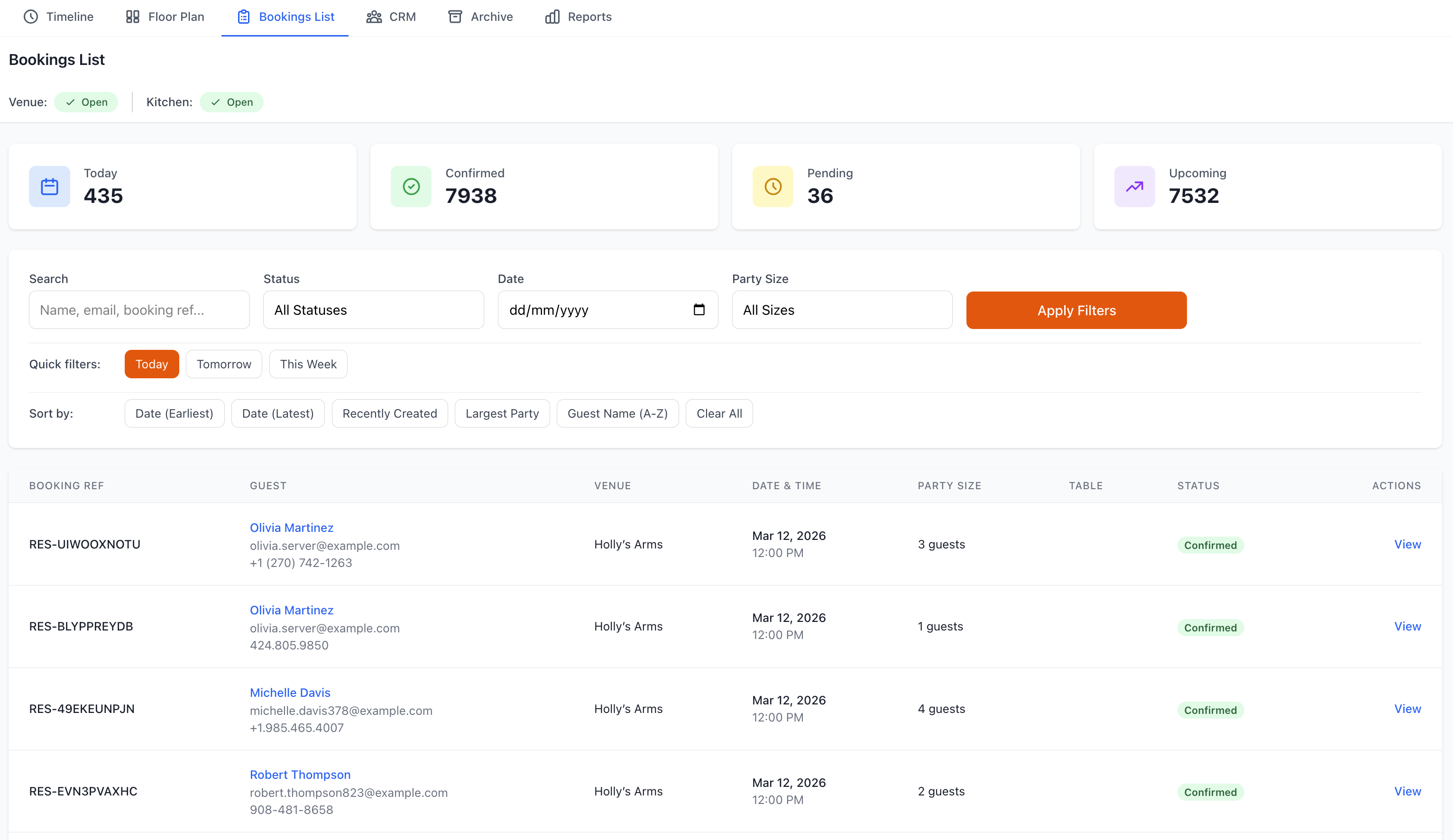
List View
Default Display
Columns Shown
- Date and time
- Guest name
- Party size
- Table assigned
- Booking status
- Contact information
- Source (online/phone/walk-in)
- Created date
- Special requests
Optional Columns
- Booking reference
- Payment status
- Deposit amount
- Guest tags
- Visit history
- Revenue estimate
- Staff notes
- Confirmation status
Customizing View
Column Management
- Click Columns button
- Check/uncheck columns
- Drag to reorder
- Adjust column widths
- Save as default (optional)
Sort Options
- Click column header
- Ascending/descending
- Multi-column sort
- Custom sort rules
- Save preferences
Filtering Bookings
Date Filters
Quick Filters
- Today
- Tomorrow
- This week
- Next 7 days
- This month
- Custom date range
Date Range Picker
- Select start date
- Select end date
- Apply filter
- Clear to reset
Status Filters
Filter by booking state:
Status Options
- All bookings
- Confirmed only
- Pending confirmation
- Seated (active)
- Completed
- Cancelled
- No-shows
- Waitlist
Multiple Selection
- Select multiple statuses
- Include/exclude
- Complex criteria
- Save filter presets
Source Filters
By booking origin:
- Online bookings
- Phone bookings
- Walk-ins
- Partner platforms
- Widget bookings
- API bookings
- Manual entries
Table Filters
Filter by seating:
- Assigned tables
- Unassigned bookings
- Specific table numbers
- Table areas
- Indoor/outdoor
- VIP tables
Advanced Filters
Guest Criteria
- First-time guests
- Returning customers
- VIP customers
- Specific guest tags
- Visit frequency
- Spend level
Booking Criteria
- Party size range
- Time range
- Specific meal period
- Special occasions
- Dietary requirements
- Has notes
Financial Criteria
- Has deposit
- Payment required
- Outstanding balance
- Minimum spend
- Revenue range
Searching
Quick Search
Fast lookup:
Search Fields
- Guest name
- Phone number
- Email address
- Booking reference
- Confirmation code
- Table number
Search Tips
- Partial matches work
- Not case-sensitive
- Real-time results
- Clear to reset
Advanced Search
Detailed queries:
- Click Advanced Search
- Select search fields
- Enter criteria
- Combine with filters
- Execute search
- Save search (optional)
Save Searches
- Name your search
- Quick access
- Reusable queries
- Share with team
- Update criteria
Managing Bookings
Viewing Details
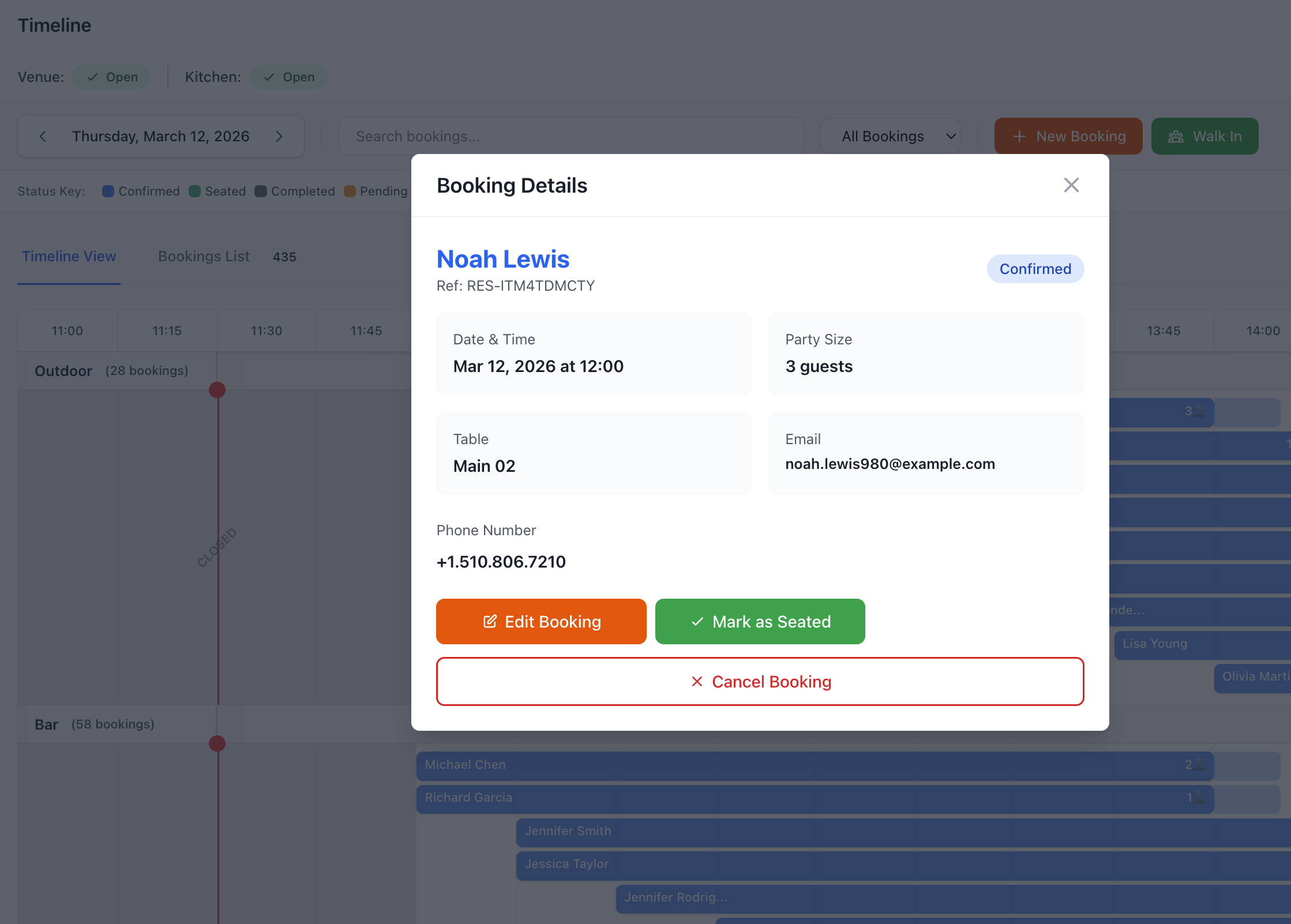
Click any booking to see:
Guest Information
- Full name
- Contact details
- Customer history
- Preferences
- Tags and notes
- Past visits
Booking Details
- Date and time
- Party size
- Duration
- Table assignment
- Service type
- Source/channel
Special Requirements
- Dietary needs
- Accessibility requirements
- Seating preferences
- Special occasions
- Custom requests
Financial Information
- Deposit status
- Payment details
- Outstanding balance
- Minimum spend
- Expected revenue
Editing Bookings
Modify existing bookings:
- Click booking
- Click Edit
- Update any details
- Save changes
- Notify customer (optional)
Editable Fields
- Date and time
- Party size
- Guest information
- Table assignment
- Special requests
- Booking notes
- Status
Quick Actions
From List Row
Hover over booking for quick actions:
- Edit - Modify booking
- Email - Send email
- SMS - Send text
- Call - Click to call
- Seated - Mark as seated
- Complete - Mark complete
- Cancel - Cancel booking
- No-Show - Mark no-show
Bulk Operations
Select multiple bookings:
Bulk Actions Available
- Send messages (email/SMS)
- Change status
- Assign tables
- Export data
- Add tags
- Add notes
- Cancel bookings
- Generate reports
How to Bulk Select
- Check booking checkboxes
- Select action
- Configure details
- Confirm operation
- Process all selected
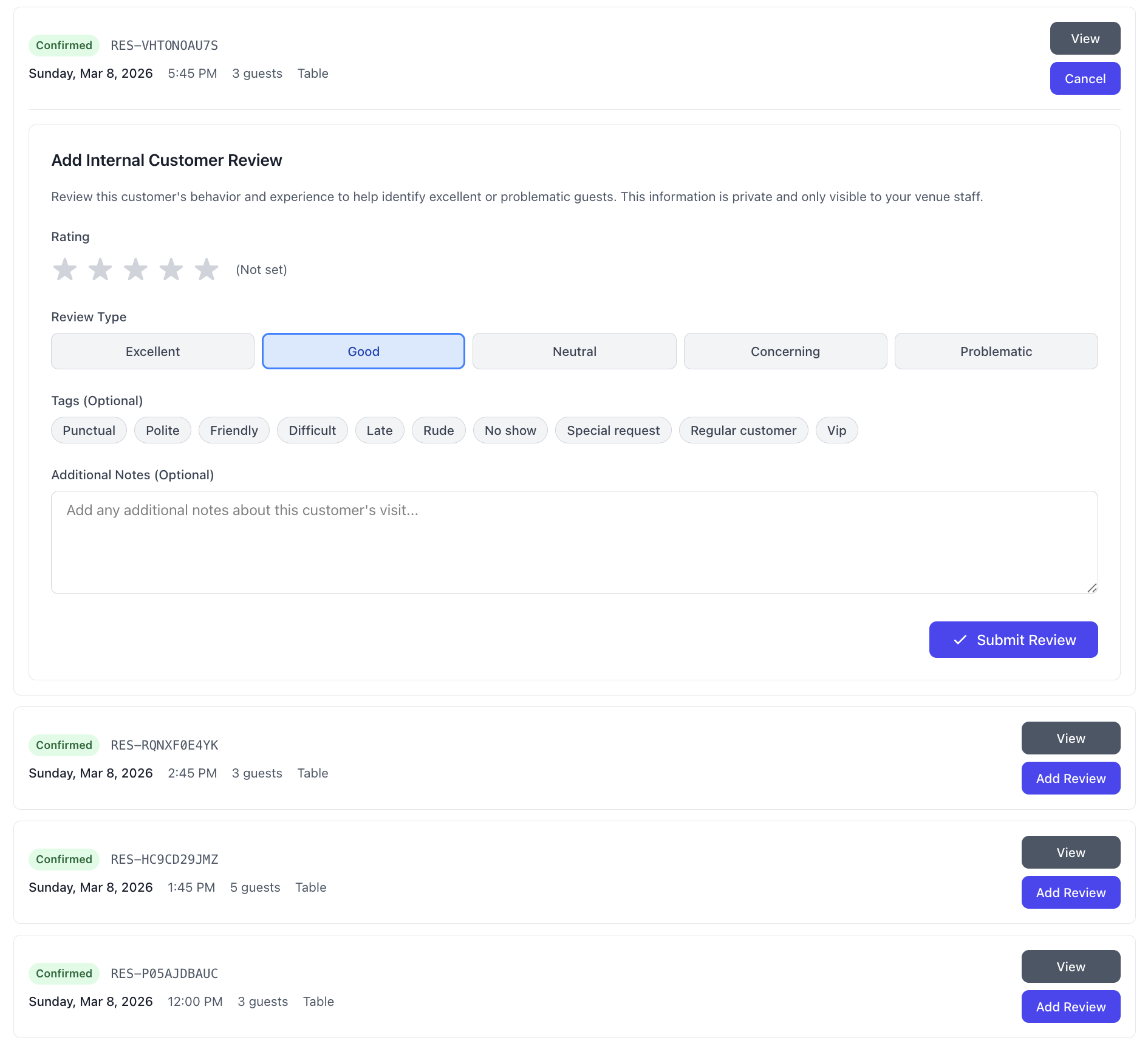
Booking Status Management
Changing Status
Update booking state:
Status Options
Confirmed
- Booking verified
- Guest expects to attend
- Standard status
Pending
- Awaiting confirmation
- Requires follow-up
- Time-sensitive
Seated
- Guests arrived
- Service in progress
- Active booking
Completed
- Service finished
- Guests departed
- Ready to close
Cancelled
- Booking cancelled
- Record reason
- Refund processed
- No-show prevention
No-Show
- Guests didn't arrive
- No communication
- Flag customer
- Policy enforcement
Status Workflow
Typical flow:
- Created → Booking made
- Confirmed → Guest confirms
- Reminded → Reminder sent
- Seated → Guests arrive
- Completed → Service ends
Alternative outcomes:
- Cancelled → Guest cancels
- No-Show → Guest doesn't arrive
Customer Communication
Sending Messages
Email Communication
- Select booking(s)
- Click Email
- Choose template or custom
- Review message
- Send email
SMS Communication
- Select booking(s)
- Click SMS
- Choose template
- Review text
- Send SMS
Message Templates
- Booking confirmation
- Reminder (24 hours)
- Reminder (2 hours)
- Table ready
- Thank you
- Request feedback
- Special offer
- Custom messages
Automated Messages
Configure automatic communication:
Confirmation
- Immediate after booking
- Booking details
- Add to calendar
- Venue information
Reminders
- 24 hours before
- 2 hours before
- Custom timing
- SMS or email
Post-Visit
- Thank you message
- Feedback request
- Return incentive
- Review request
Exporting Data
Export Options
File Formats
- Excel (.xlsx)
- CSV (.csv)
- PDF (formatted)
- Google Sheets
- Text file
Export Settings
- Click Export
- Select date range
- Choose columns
- Select format
- Apply filters
- Download file
Export Uses
Common Scenarios
- Backup bookings
- External analysis
- Reporting
- Integration
- Accounting
- Marketing lists
- Performance review
Performance Metrics
Summary Statistics
View aggregate data:
Displayed Metrics
- Total bookings
- Total covers (guests)
- Average party size
- Booking sources
- Cancellation rate
- No-show rate
- Completion rate
Financial Summary
- Total deposits
- Expected revenue
- Average booking value
- Outstanding balances
- Revenue by source
Time Analysis
- Peak booking times
- Popular days
- Service distribution
- Booking lead time
- Average duration
Special Features
Duplicate Detection
Prevent double-bookings:
Alerts for
- Same phone number
- Same email
- Same name
- Similar time
- Multiple bookings
Action Options
- Merge bookings
- Keep separate
- Contact customer
- Update details
- Flag for review
Conflict Warnings
Identify issues:
Warning Types
- Overbooked tables
- Time overlaps
- Capacity exceeded
- Staff shortages
- Kitchen capacity
- Special requirements conflict
Resolution
- Adjust times
- Reassign tables
- Increase capacity
- Contact customer
- Combine bookings
Tags & Labels
Organize bookings:
Tag Categories
- Customer type (VIP, regular, new)
- Occasion (birthday, anniversary)
- Special needs
- Source campaign
- Custom tags
Using Tags
- Filter by tag
- Report by tag
- Bulk tag assignment
- Tag-based automation
- Marketing segments
Best Practices
List Management
- Regular Reviews - Check daily
- Status Updates - Keep current
- Follow Ups - Pending bookings
- Data Quality - Accurate information
- Organization - Use tags and filters
Efficiency Tips
- Keyboard Shortcuts - Learn shortcuts
- Saved Filters - Quick access
- Bulk Operations - Save time
- Custom Views - Optimize layout
- Bookmarks - Common searches
Data Accuracy
- Verify Details - Check information
- Update Changes - Prompt updates
- Customer Confirmation - Verify with guests
- Note Everything - Document details
- Regular Cleanup - Archive old data
Troubleshooting
Bookings Not Showing
If bookings missing:
- Check date range
- Review filters applied
- Verify status filter
- Check table filter
- Search by name
- Clear all filters
Slow Loading
Performance issues:
- Reduce date range
- Apply filters
- Clear browser cache
- Close unused tabs
- Check internet speed
- Update browser
Export Failing
Download problems:
- Try smaller date range
- Fewer columns
- Different format
- Disable popup blocker
- Check permissions
- Contact support
Search Not Working
Search issues:
- Check spelling
- Try partial name
- Remove filters first
- Clear search
- Refresh page
- Contact support
Support
Need help with Bookings List?
- Email: [email protected]
- WhatsApp: WhatsApp Support
Related Pages
- Timeline - Visual timeline view
- Floor Plan - Visual floor plan
- New Booking - Create reservation
- CRM - Customer management
- Reports - Detailed reporting
Power User Feature
Save custom filter combinations and column configurations for instant access to your most-used views.